Hey there Crafters! Today, we're tackling a question I get asked all the time: “Which Cricut should I buy in 2026?” Well, you're in the right place because I'm here to help you make that decision. Whether you're brand new to Cricut (not sure what a Cricut even is?) or considering an upgrade, this article is for you.
Cricut has streamlined their lineup for 2026, making it easier than ever to choose the right machine. Just take a deep breath because I'm going to break down all the differences for you and help you decide which machine is best for your crafting needs.
Understanding the Cricut Lineup in 2026
Let's start by diving into the available Cricut machine models in 2026. The current lineup includes:
- Cricut Maker 5 – The newest Maker, released September 2026
- Cricut Maker 4 – The powerhouse for serious crafters
- Cricut Explore 5 – The newest version of the Explore line
- Cricut Explore 4 – Perfect balance of price and features
- Cricut Joy Xtra – Compact with Print Then Cut
- Cricut Joy 2 – The smallest machine, now with Print Then Cut
- Cricut Joy – The portable option
- Cricut Venture – Professional wide-format cutting
I'll guide you through the differences between these machines and help you decide which one suits your crafting needs best.
Quick Comparison Chart
| Machine | Price | Materials | Max Cut Size | Tools | Best For |
|---|---|---|---|---|---|
| Maker 5 | $349 | 300+ | 11.7″ × 12 ft | 13 | The newest Maker, smaller and lighter |
| Maker 4 | $379 | 300+ | 11.7″ × 12 ft | 13 | Serious crafters who want it all |
| Explore 5 | $199 | 100+ | 11.7″ × 12 ft | 6 | New buyers who want the latest model |
| Explore 4 | $199 | 100+ | 11.7″ × 12 ft | 6 | Beginners & hobbyists |
| Joy Xtra | $129 | 50+ | 8.5″ × 4 ft | 3 | Stickers & cards |
| Joy 2 | $99 | 75+ | 4.5″ × 4 ft | 4 | Stickers & small projects, with Print Then Cut |
| Joy | $99 | 50+ | 4.5″ × 4 ft | 3 | Small projects & labels |
| Venture | $499 | 100+ | 24″ × 12 ft | 6+ | Business & large projects |
New to Cricut? I wrote Cricut For Dummies specifically for people just like you! It covers everything from choosing the right machine (Chapter 2!) to your first projects. If you want a complete guide you can flip through anytime, grab your copy here.
The Cricut Maker 5: The Newest Maker (2026)
Cricut announced the Cricut Maker 5 on September 3, 2026 and put it on sale the next day. I do not have one in front of me yet, so everything below is Cricut's own specs measured against the Maker 4 that sits on my craft table.
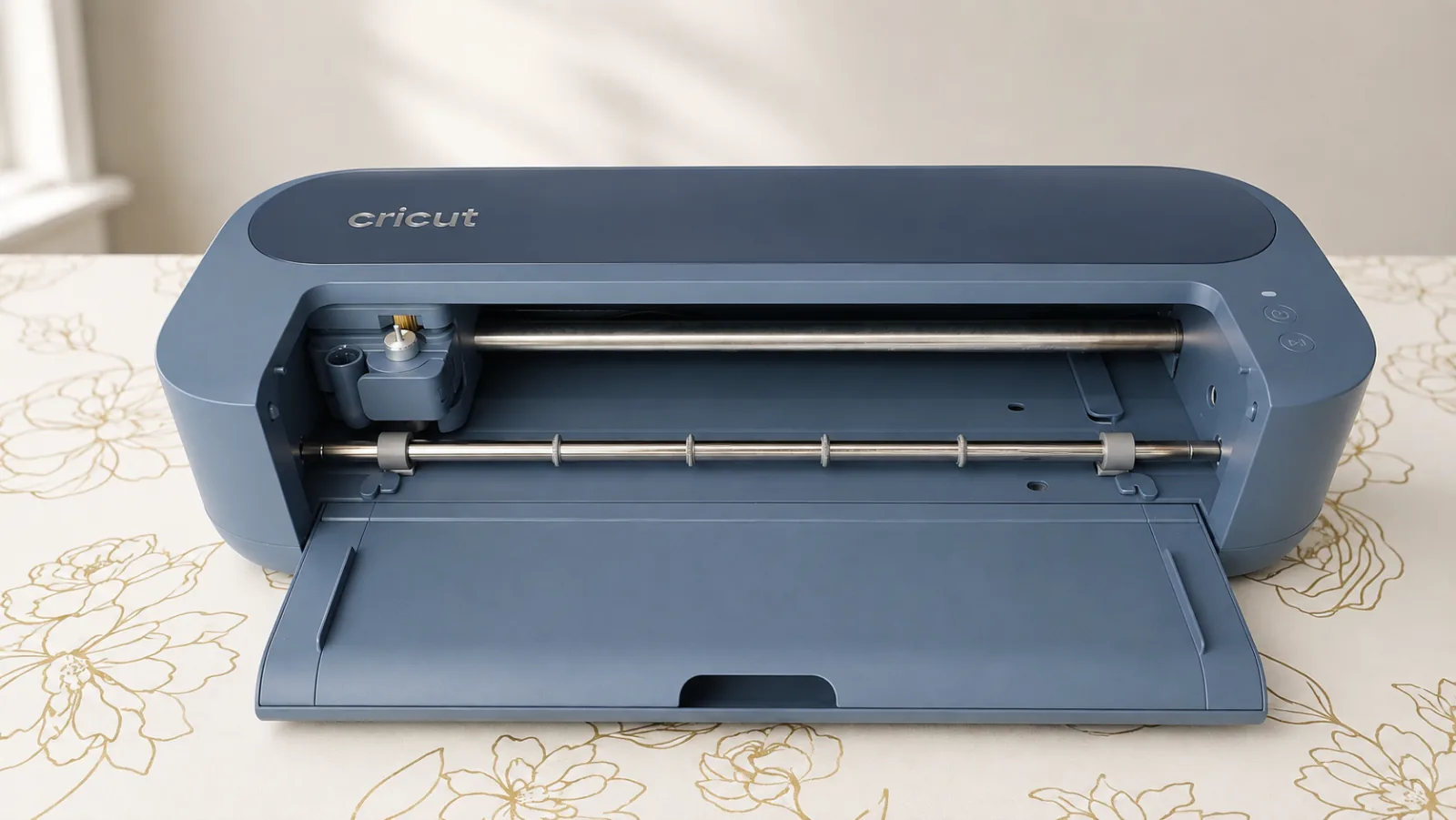
The headline is the price. The Maker 5 is $349, which is $30 less than the Maker 4. That on its own changes my advice for anyone buying their first Maker, because you are now getting the newer machine for less money.
There is one genuine capability gain. The Maker 5 cuts and engraves up to 3 mm, where the Maker 4 stops at 2.4 mm. That is a 25% increase, and it applies to engraving as well as cutting. Almost everything else you might expect to improve did not. Cut speed is still 14.1 inches per second, it still handles 300+ materials, it still works with 13 tools, and the cutting area has not changed.
What did change is the shape of it. The Maker 5 is 30% more compact and 4.5 pounds lighter, at 10.9 pounds against the Maker 4's 15.4. If you pack your machine away after every session, or you are working on a small desk, that is a difference you will actually feel. The trade is that the lid and the side storage compartment are both gone.
Two compatibility changes are worth knowing before you spend the money. Your older Cricut pens will not fit the new snap-in pen holder, so a pen collection you have built up over the years does not carry over. The Scoring Stylus is not compatible either. You can still score, using the new Scoring Tool or the Scoring Wheels, but the Stylus used to sit in Clamp A while a blade sat in Clamp B, which meant a card could score and cut in one pass without you touching it. On the Maker 5 that same project needs a tool swap partway through.
So who should buy it? If this is your first Cricut and you want a Maker, buy the Maker 5. It is cheaper than the Maker 4 and there is no reason to pay more for the older machine. If you are moving up from an Explore, that is an easy yes too, because you gain the Rotary Blade, the Knife Blade, engraving and debossing. If you already own a Maker 4, I struggle to find the reason, unless you are regularly hitting that 2.4 mm ceiling or you genuinely need the desk space.
I am not upgrading mine yet. I explain exactly why in my full Cricut Maker 5 breakdown, along with the compatibility surprises that are not in the marketing.
The Cricut Maker 4: The Ultimate Crafting Machine
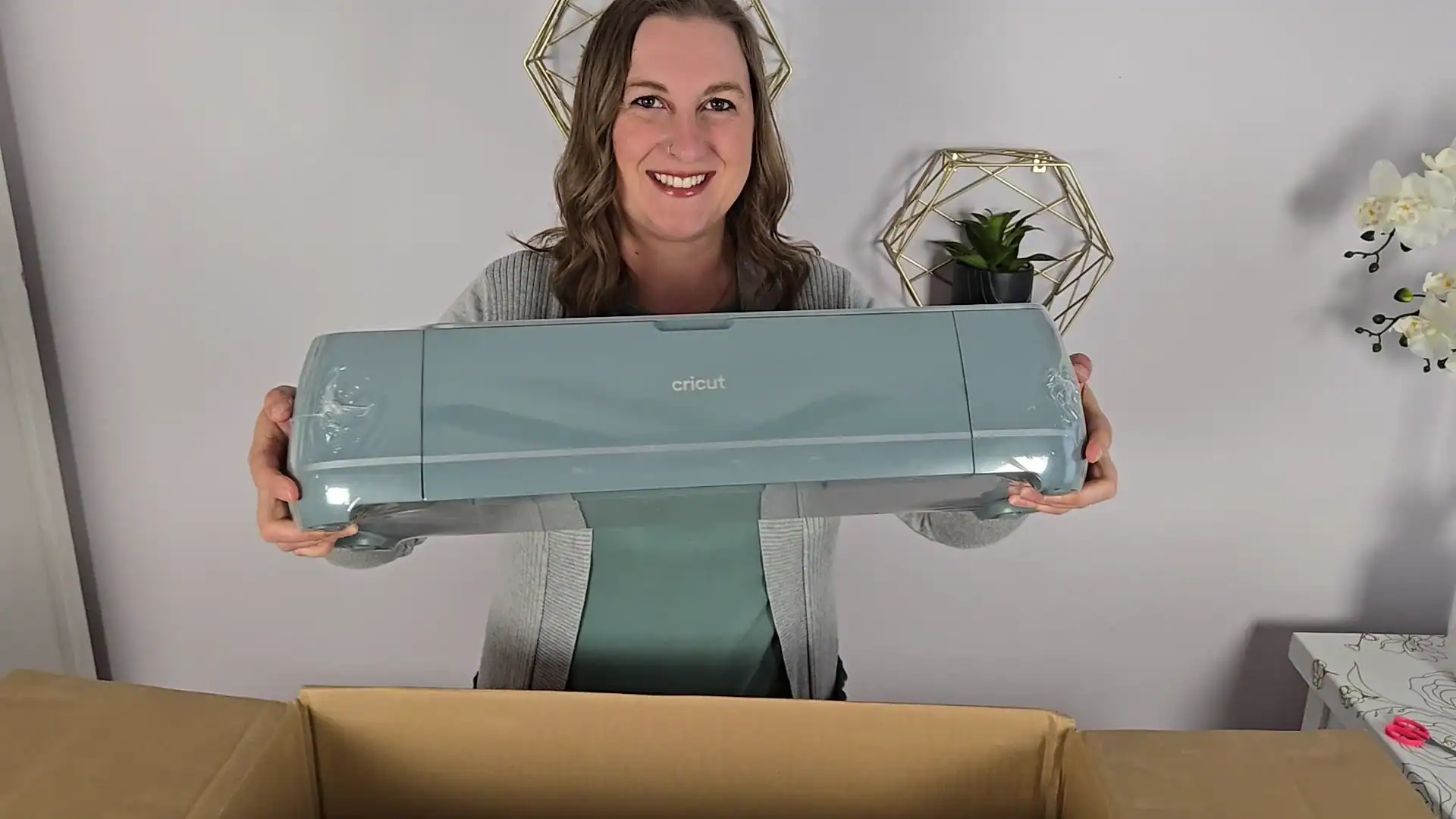
Next is the Cricut Maker 4, which was my top pick right up until the Maker 5 arrived. It is still the same capable machine it always was, and everything below still applies to it.
The one thing that has changed is the maths. The Maker 4 now sells for $379, which is $30 more than the newer machine, so I would only choose it deliberately: because you want the lid and the side storage, because you already own pens and a Scoring Stylus that will not work on the Maker 5, or because you find one discounted. Here is how the two machines actually compare.
What Makes the Maker 4 Special?
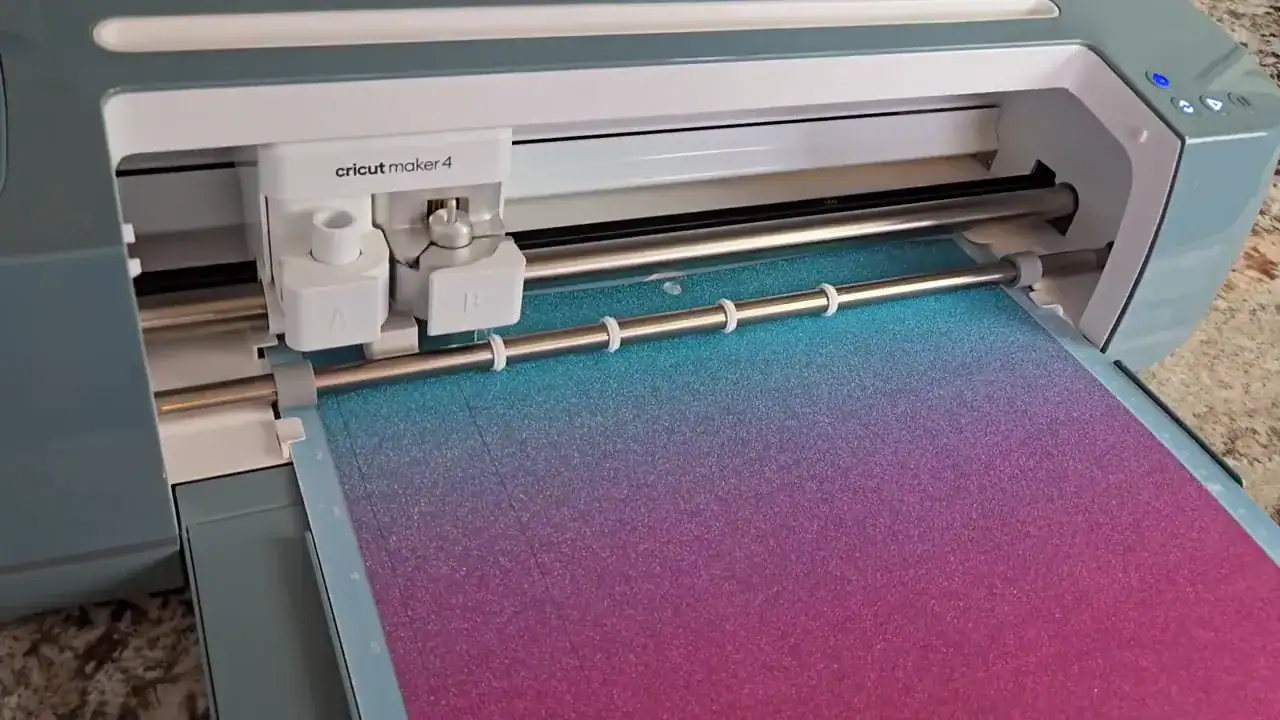
The Maker 4 has 10x the cutting force of previous generations, which means it can handle over 300 different materials. We're talking vinyl, iron-on, cardstock, leather, basswood, fabric, felt, chipboard, and so much more.
Key Features:
- Cuts at speeds up to 14.1 inches per second (twice as fast as older models!)
- Works with 12+ interchangeable tools including the rotary blade, knife blade, engraving tip, debossing tip, and perforation blade
- Can cut, write, draw, foil, score, engrave, deboss, and perforate
- Maximum cut size of 11.7″ wide × 12 feet long with Smart Materials
- Easy Printables sensor for Print Then Cut projects
- Bluetooth and USB connectivity
New to the Maker 4? Here's my full Cricut Maker 4 setup guide to walk you through it.
Who Should Buy the Maker 4?

The Maker 4 is perfect if you:
- Want to cut fabric, leather, or wood
- Plan to engrave, deboss, or perforate
- Want the fastest cutting speeds
- See yourself making a wide variety of projects
- Might turn your hobby into a small business someday
The Cricut Maker 4 is currently priced at $349. If you're just getting started, I recommend grabbing an Everything Bundle which includes materials to get you started and is usually a better deal than buying everything separately. Wondering whether the machine earns its price back? Here is where a Cricut actually saves you money.
Pro tip: I cover the Maker's Adaptive Tool System in detail in Chapter 4 of my book Cricut For Dummies if you want to dive deeper into all the tools and what they can do!
The Cricut Explore 5: The Newest Explore (2026)
Cricut released the Explore 5 in 2026. I picked one up the morning it launched so I could test it myself.
Here's my honest take. The Cricut Explore 5 is a redesign, not an upgrade. It cuts the same materials at the same speed as the Explore 4. It makes the same projects too: vinyl decals, labels, stickers, cards, iron-on apparel, gift boxes, and signs. It even runs the same Design Space software.
What changed is mostly the look. The Explore 5 drops the built-in lid and storage compartment. The Essentials Bundle also skips the scissors and tweezers you used to get.
The machine alone starts at $199. The Essentials Bundle runs about $249, and the Ultimate bundles go up from there.
So who should buy it? If this is your first Cricut, the Explore 5 is a great starter machine at $199. But if you already own an Explore 4 or a Maker 4, I would not upgrade. There is nothing here that changes what you can make. If you are still weighing up the whole lineup, my Joy vs Explore vs Maker comparison puts them side by side.
Want the full story? Read my complete Cricut Explore 5 review with the unboxing, setup, and a test cut.
The Cricut Explore 4: Best Value for Beginners

The Cricut Explore 4 is the sweet spot for most crafters. It offers an impressive feature set at a more accessible price point.
What Can the Explore 4 Do?
The Explore 4 cuts 100+ materials including vinyl, iron-on (HTV), cardstock, bonded fabric, and more. It shares the same fast cutting speed as the Maker 4 at 14.1 inches per second.
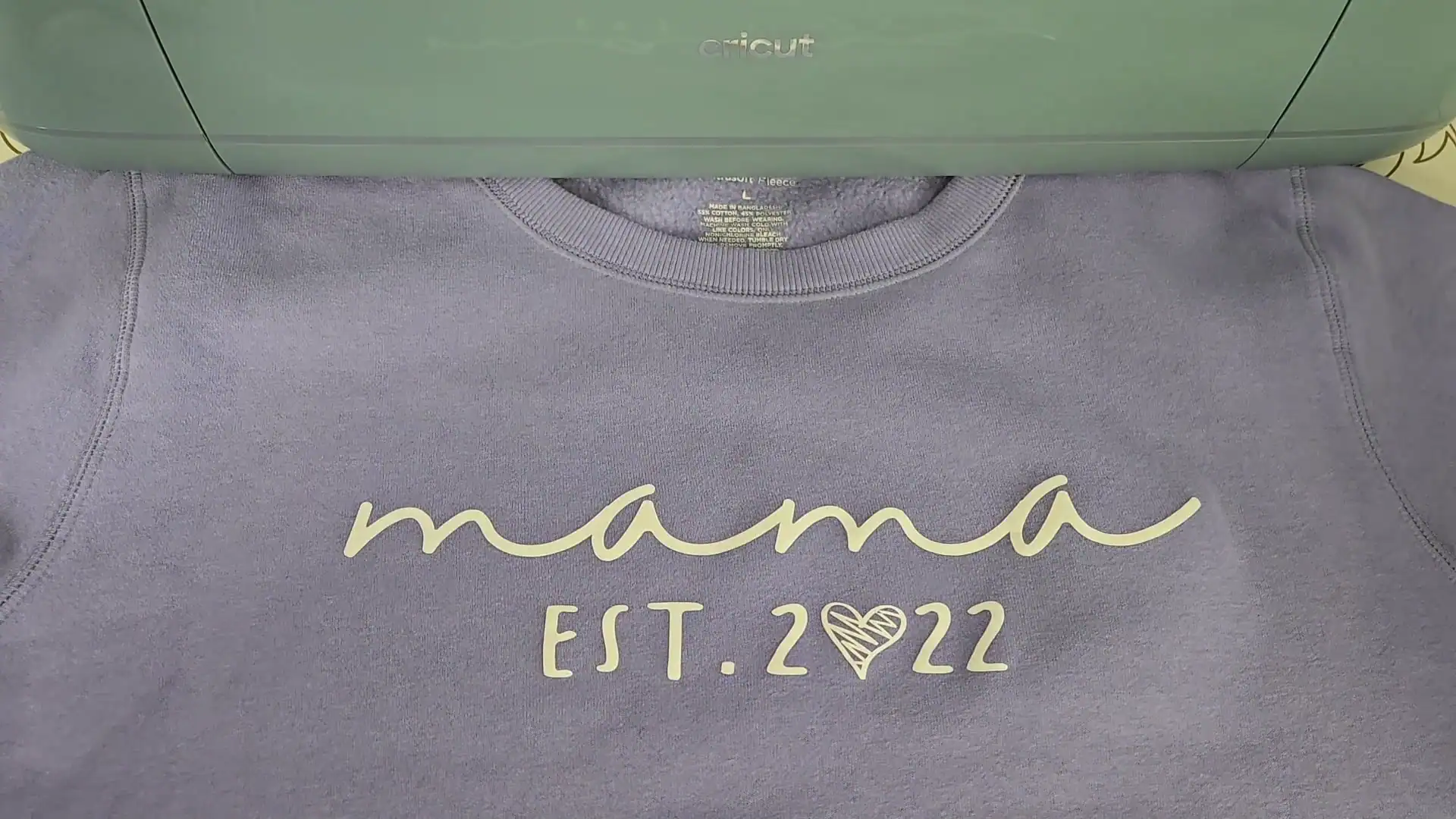
Key Features:
- Cuts at twice the speed of previous Explore models
- Works with 6 interchangeable tools
- Can cut, write, draw, foil, and score
- Maximum cut size of 11.7″ wide × 12 feet long with Smart Materials
- Easy Printables sensor for Print Then Cut
- Bluetooth and USB connectivity
- 2 tool clamps for cut-and-draw projects
Explore 4 vs Maker 4: What's the Difference?
The biggest difference is the cutting technology. The Maker 4 has the Adaptive Tool System that allows it to work with specialized tools like the rotary blade (for fabric), knife blade (for thick materials like balsa wood), engraving tip, debossing tip, and perforation blade.

With the Explore 4, you can cut, write, score, and foil. You cannot engrave, deboss, perforate, or cut thick materials like basswood. If those features matter to you, go with the Maker 4.
Who Should Buy the Explore 4?
The Explore 4 is perfect if you:
- Are new to Cricut and want a great starting point
- Mainly work with vinyl, iron-on, and paper/cardstock
- Want Print Then Cut for stickers
- Don't need to cut fabric, leather, or wood
- Want excellent value for your money
The Cricut Explore 4 is currently priced at $199. That's $150 less than the Maker 4, making it a fantastic entry point. Check out the Explore 4 Everything Bundle if you want materials included.
The Cricut Joy Xtra: Compact with Print Then Cut

The Cricut Joy Xtra is Cricut's mid-size compact machine. What makes it special? It's the smallest Cricut that can do Print Then Cut!
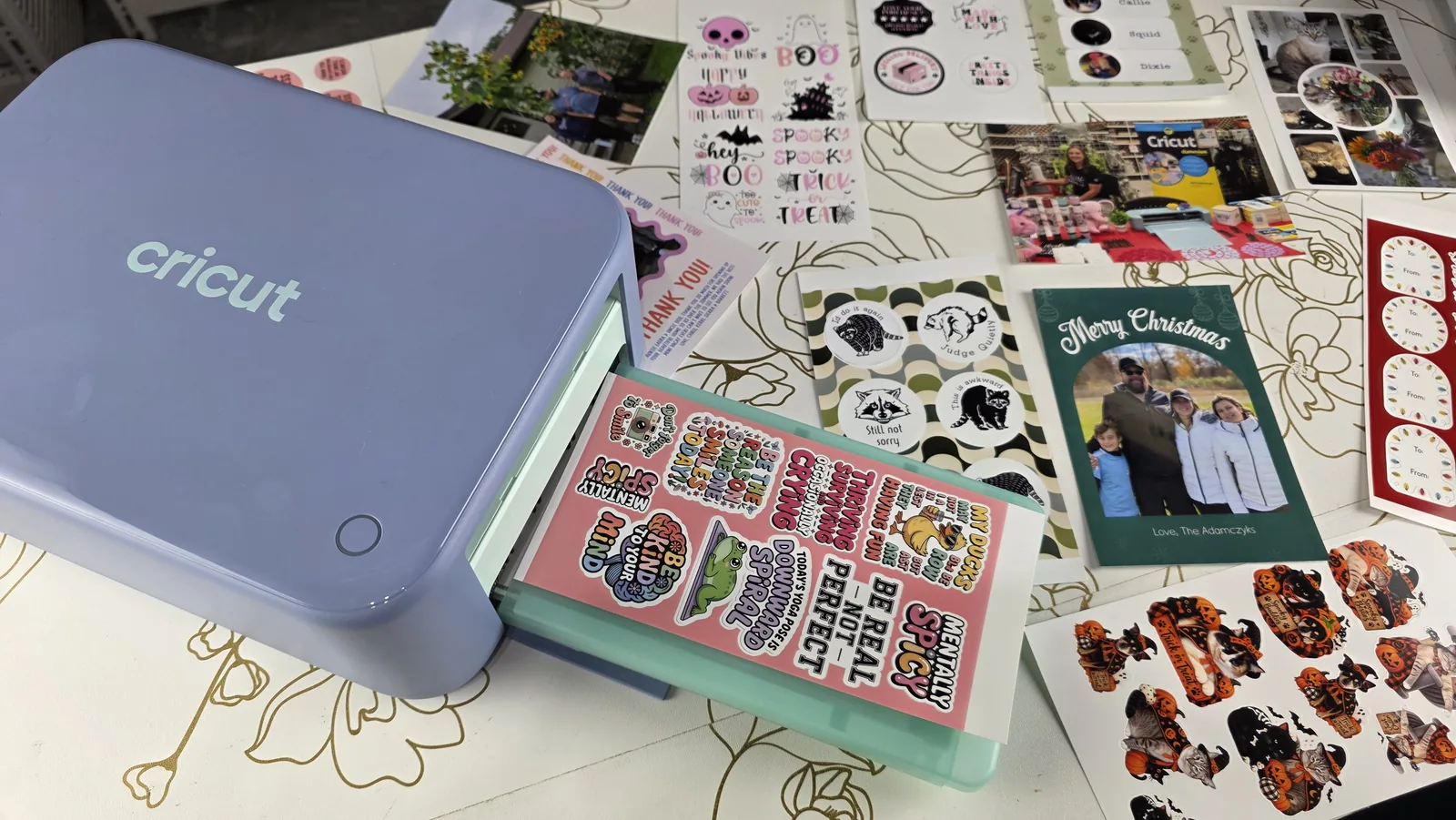
Only interested in stickers? Cricut also sells the StickerPix, a small sticker printer that prints, laminates and cuts on its own 4×7 inch sheets, no inkjet needed. It is not a cutting machine for vinyl or cardstock, though. I break down both models in my StickerPix Print vs Print + Cut comparison.
What Can the Joy Xtra Do?
The Joy Xtra cuts 50+ materials with a maximum width of 8.5 inches (letter paper size!) and up to 4 feet long.
Key Features:
- Print Then Cut compatible – make full-color stickers!
- Cuts up to 8.5″ wide × 4 feet long
- Works with Smart Materials (matless cutting)
- Can cut, write, draw, and foil
- Compact footprint for small spaces
- Bluetooth connectivity
Who Should Buy the Joy Xtra?
The Joy Xtra is perfect if you:
- Love making stickers and want a compact machine
- Have limited crafting space
- Make lots of cards and gift tags
- Want a portable machine for craft fairs
- Already have a larger Cricut and want a secondary machine
The Cricut Joy Xtra is currently priced at $129. Consider the Joy Xtra Everything Bundle if you want to hit the ground running.
Important: The Joy Xtra only has 1 tool clamp, so you can cut OR draw, but not in the same operation without stopping to change tools. The larger machines have 2 clamps so they can do both seamlessly.
The Cricut Joy 2: Print Then Cut in the Smallest Machine
The Cricut Joy 2 arrived in February 2026 alongside the Explore 5. I have not had one on my own craft table yet, so what follows is Cricut's published specs rather than my own testing.
One thing matters here above everything else: the Joy 2 does Print Then Cut, and the original Joy never did. You can print a full color design on your home inkjet, let the machine cut it out, and end up with proper full color stickers, printable decals and temporary tattoos, on a machine that costs $99 and weighs 2.7 pounds.
That quietly reshapes the bottom of the lineup. Print Then Cut used to be the reason to step up to the Joy Xtra. It now starts at $99 instead of $129, so if stickers are the thing you came here for, this is the cheapest way into them.
What you do not get is size. The Joy 2 cuts 4.5 inches wide, the same as the original Joy, and up to 4 feet long with Smart Materials. On a mat you are working in roughly 4.2 by 11.7 inches. It handles 75+ materials at 5.3 inches per second, which is a long way short of the 14.1 the Explore and Maker lines manage. It comes with the Premium Fine Point cutting tool, a Scoring Tool and a dual-tip marker, and the Foil Transfer Tool works with it separately.
Buy the Joy 2 if you want a machine that lives in a drawer and comes out for labels, cards, small decals and stickers, or if you already own a big machine and want something you can travel with. Do not buy it as your only machine if you plan to make shirts. At 4.5 inches wide it cannot cut a decal big enough for the front of an adult tee, and for most people that is the whole reason they bought a Cricut.
The Cricut Joy: Portable and Budget-Friendly
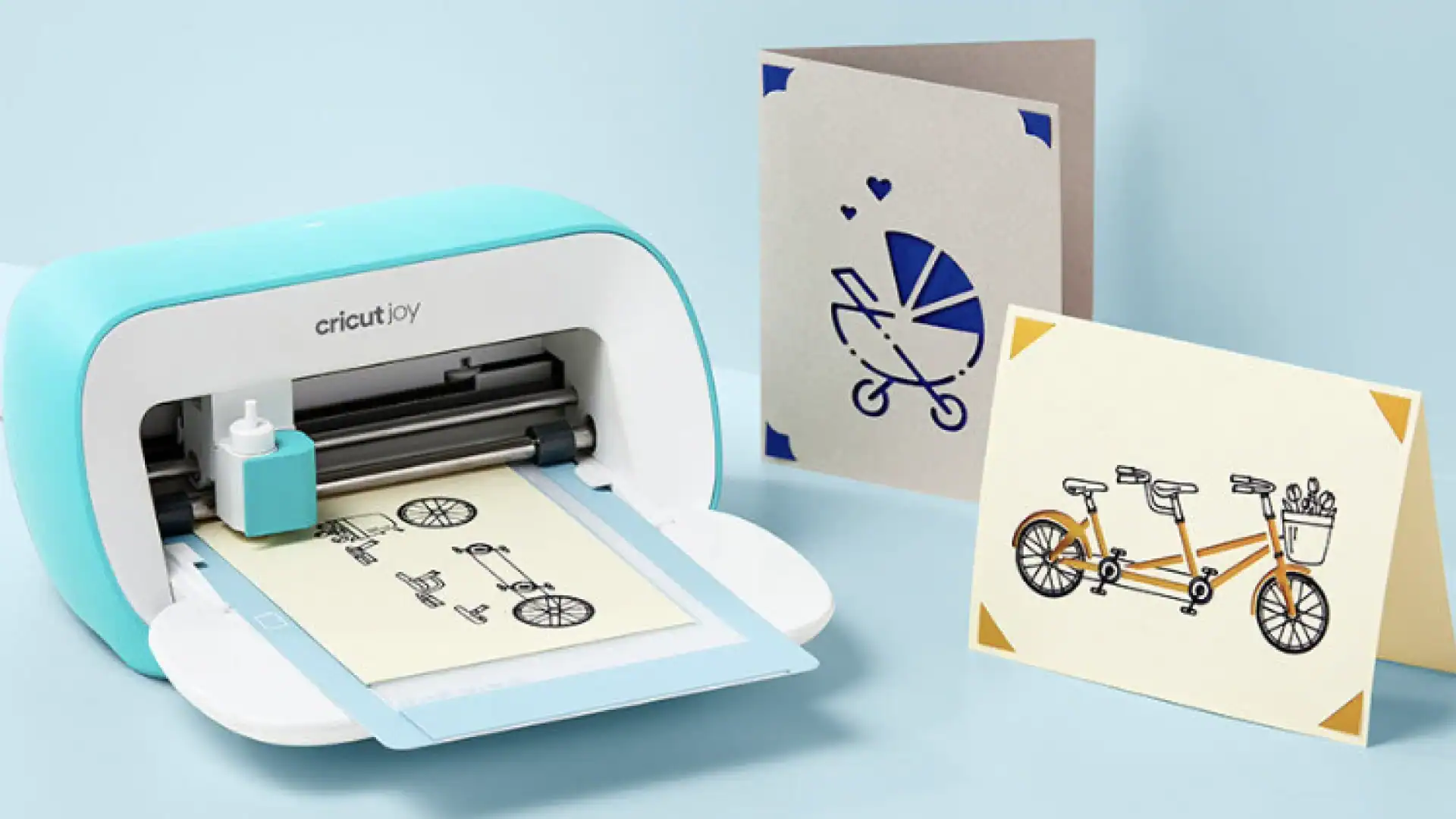
The Cricut Joy is Cricut's smallest and most affordable machine. It's designed for quick, everyday projects.
What Can the Joy Do?
The Joy is limited to a 4.5 inch wide cut area, but it can cut projects up to 4 feet long using Smart Materials.
Key Features:
- Most compact Cricut machine
- Cuts up to 4.5″ wide × 4 feet long
- Works with Smart Materials (matless cutting)
- Can cut, write, draw, and foil
- Bluetooth connectivity
What the Joy Can't Do
I want to be honest with you here. The Cricut Joy has some significant limitations:
- No Print Then Cut – you cannot make full-color stickers
- Cannot score – no card-folding lines
- Very narrow cut width – too small for t-shirts or signs
- 1 tool clamp – can't cut and draw simultaneously
Who Should Buy the Joy?
The Joy is best if you:
- Only make small projects like labels, name decals, and cards
- Need an ultra-portable option
- Have a tight budget
- Want a secondary “personalization” machine
- Don't plan to make shirts, signs, or stickers
The Cricut Joy is currently priced at $99.
My honest take: I personally wouldn't recommend the Joy as your first or only Cricut machine because of how limited you are with size and project types. You may be a beginner now, but you're only a beginner for a little while! Before you know it, you'll want to make anything and everything. You might think you're saving money by going with their cheapest machine, but you're not saving money in the long run if you end up wanting to upgrade.
The Cricut Venture: Professional Wide-Format

The Cricut Venture is unlike any other Cricut machine. This wide-format professional cutting machine is built for business use and extra-large projects.
What Makes the Venture Special?
The Venture can cut up to 24 inches wide and up to 12 feet long. That's twice as wide as any other Cricut! It also cuts at an incredible 25.4 inches per second – the fastest Cricut ever made.
Key Features:
- Cuts 24″ wide materials (twice the width of Maker/Explore!)
- Cuts at 25.4 inches per second (blazing fast!)
- Works with 100+ materials
- Unique space-saving 45-degree tilted design
- Can adjust between 13″ and 25″ material widths
- Automatic Cutoff Tool for trimming long projects
- Performance Fine-Point Blade included
- Bluetooth and USB connectivity
Who Should Buy the Venture?
The Venture is perfect if you:
- Run a Cricut-based business
- Make large signs, banners, or wall decals
- Need to produce high volumes quickly
- Want professional-grade speed and width
- Have the space and budget for a pro machine
The Cricut Venture has dropped to $499 (down from the original $999 launch price!). This is a significant price drop that makes it much more accessible for serious crafters. Check out the Venture Bundle with Stand if you want the complete professional setup.
My Recommendations by Crafter Type
Best for Beginners: Cricut Explore 4
Good news: the newer Explore 5 is basically the same machine in a new shell, also at $199. Grab whichever one is in stock, or save money on a discounted Explore 4.

If you're just getting started, the Explore 4 at $199 is the best value. It handles vinyl, HTV, cardstock, and Print Then Cut – everything most crafters need. You can always upgrade later if you discover you need more capabilities.
Best Overall: Cricut Maker 5
If budget isn't your main concern, the Maker 5 at $349 is my top pick, and it now costs less than the Maker 4 does at $379. The ability to cut fabric, leather, wood, and use all 13 tools means you'll never outgrow this machine. If you already own a Maker 4, stay where you are. You are not missing much.
Best for Sticker Makers: Cricut Joy Xtra
If you primarily make stickers and cards, the Joy Xtra at $129 gives you Print Then Cut in a compact package.
Best for Business: Cricut Venture
If you're running a crafting business, the Venture at $499 pays for itself with its speed and large-format cutting capability.
What About Older Cricut Machines?
You may have seen the Cricut Maker 3, Explore 3, or Explore Air 2 mentioned elsewhere. These machines have been phased out of Cricut's main lineup in favor of the newer “4” generation machines.
If you find an older model on sale at a great price, they're still solid machines that work with the same Cricut Design Space software. Just know that the Maker 4 and Explore 4 offer twice the cutting speed and improved sensors.
Frequently Asked Questions
Do I need Cricut Access to use my machine?
No! Cricut Access is a subscription that gives you access to fonts, images, and projects, but it's completely optional. You can use your machine with free designs or designs you upload yourself.
Can I cut my own designs?
Yes! You can upload SVG files, PNG images, and even hand-drawn designs to Cricut Design Space. This works with all Cricut machines.
What materials can I cut?
This depends on your machine. You'll also want to understand which cutting mat to use for different materials:
- Maker 4: 300+ materials (vinyl, HTV, paper, cardstock, fabric, felt, leather, wood, chipboard, and more)
- Explore 4: 100+ materials (vinyl, HTV, paper, cardstock, bonded fabric)
- Joy/Joy Xtra: 50+ materials (vinyl, HTV, paper, cardstock)
- Venture: 100+ materials (similar to Explore 4)
Should I buy a bundle?
If you're new to Cricut, bundles are usually a better value than buying the machine and materials separately. They include starter materials so you can begin crafting right away.
Which machine is best for making shirts?
For t-shirts, I recommend the Maker 4 or Explore 4. Both can cut iron-on vinyl (HTV) and handle standard shirt decal sizes. Check out my beginner HTV tutorial and shirt sizing guide to get started. The Joy Xtra can work for smaller designs, but the Joy is too narrow for most shirt projects.
Can I use Cricut Design Space on my phone or tablet?
Yes. Design Space runs on desktop, iOS, and Android, so you can design on the go and send a cut to your machine over Bluetooth. I still reach for a laptop when a project has a lot of layers, but the app is great for quick ones.
Can I use third-party materials with my Cricut?
Absolutely, and I do it all the time. Cricut machines cut plenty of non-Cricut vinyl, cardstock, and iron-on. Just run a test cut first to dial in the pressure, because off-brand materials vary more than Cricut's own.
Should I buy a used or refurbished Cricut?
It can be a great deal at the right price. Older machines like the Explore Air 2 and Maker 3 still run the same Cricut Design Space software. Check that the blade housing and power adapter are included, and remember the newer 4 series cuts about twice as fast.
Is it better to buy a Cricut online or in store?
Online usually wins on bundles. Cricut.com and Amazon run bundle deals that fold in mats, blades, and starter materials for close to the machine-only price you would pay in a store. Buying in store is worth it if you want it today, or you want to see how big it is on your desk first.
Ready to Master Your Cricut?
I packed everything I know about Cricut into my book Cricut For Dummies! It's perfect if you want step-by-step tutorials with photos, troubleshooting tips, and 20+ project ideas all in one place. I cover machine selection, setup, Design Space, and projects from beginner to advanced.
Conclusion: Your Craft, Your Cricut
In conclusion, there's no one-size-fits-all answer to the question, “Which Cricut should I buy in 2026?” It depends on your crafting needs, budget, and available space. Do your research, consider your goals, and choose the one that best suits you.
Here's my quick recap:
- Tight budget? → Explore 4 ($199)
- Want it all? → Maker 4 ($349)
- Stickers & cards only? → Joy Xtra ($129)
- Running a business? → Venture ($499)
Happy crafting!
More Projects You'll Love
Getting Started:
- How to Use Cricut Design Space
- Cricut Maker 4 Setup Guide
- 10 Biggest Mistakes New Cricut Owners Make
- Everything You Need to Know About Cricut Access
Popular Tutorials:
- Beginner HTV Tutorial
- How to Make Vinyl Decals
- Make Stickers with Cricut
- Vinyl vs HTV: What's the Difference?
Troubleshooting & Tips: