Quick Answer: The Cricut Explore 5 is a solid $199 cutting machine for beginners, but it’s a redesign, not an upgrade. It cuts at the same speed as the Explore 4, loses the lid and storage, and the bundle skips scissors and tweezers. Buy it if it’s your first Cricut. Skip it if you own an Explore 4.
Cricut just released two brand new machines: the Cricut Explore 5 and the Cricut Joy 2.
As the author of Cricut For Dummies and someone who teaches Cricut full time, I needed to see this for myself. So I went to Michaels at 9am the morning it launched and grabbed one of the only two they had in stock.
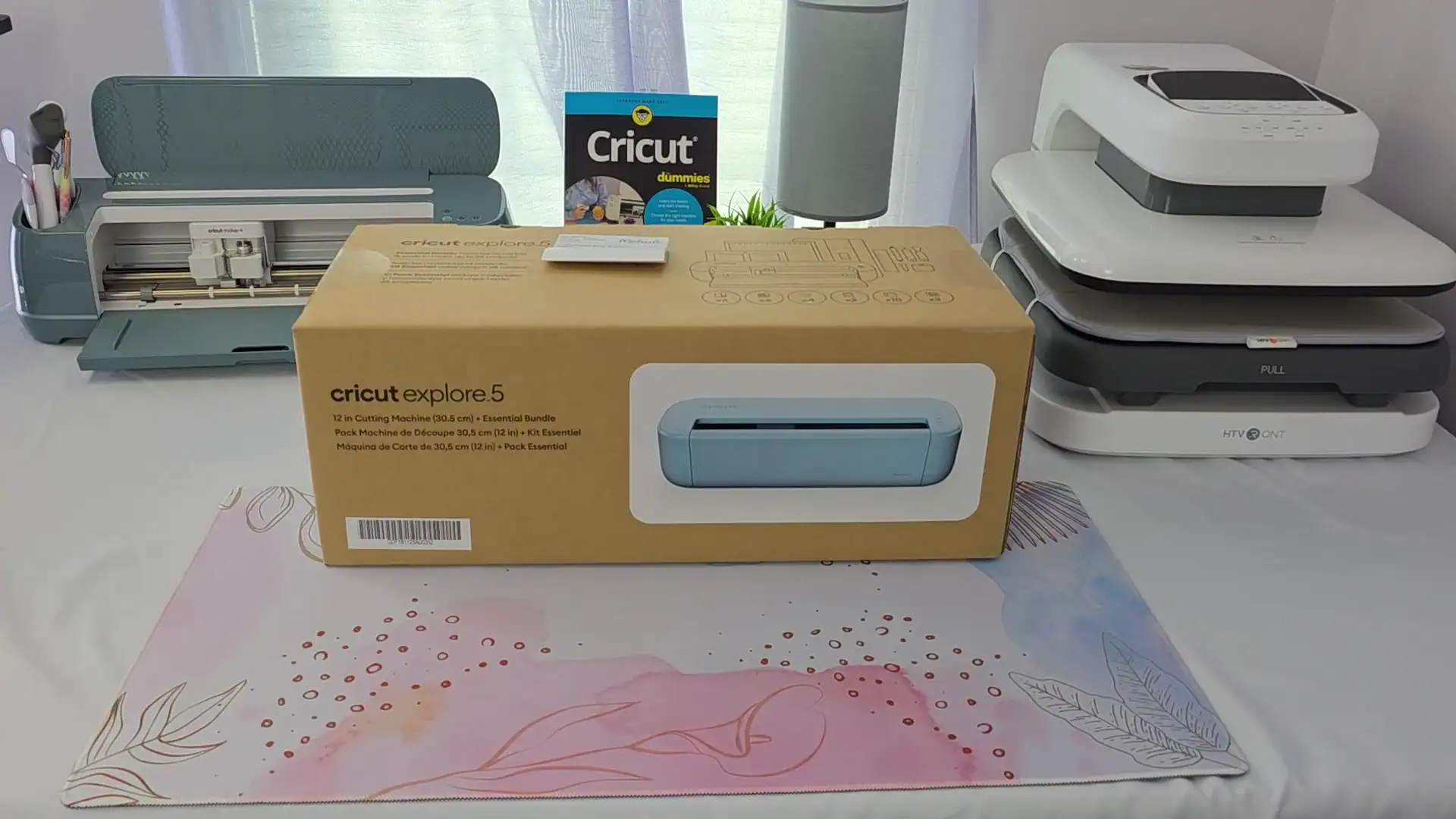
I want to know one thing: is this actually an upgrade, or is it just a redesign with a new number on it?
In this post, I’m unboxing it, walking through setup, running a test cut, and giving you my honest take on whether it deserves a spot in your craft room.
 17:52
17:52
Watch the full tutorial
Cricut Explore 5 Unboxing, Setup & Review: Upgrade or Skip It?
Cricut just released the brand new Cricut Explore 5, but is it actually an upgrade or just a redesign with a new number?
Not sure what a Cricut even is yet? Start with What is a Cricut first!
This post contains affiliate links. If you buy through them, I may earn a small commission at no extra cost to you.
Quick Links
- What the Explore 5 Can Make
- Explore 5 vs Explore 4
- How Much Does It Cost?
- What’s in the Bundle?
- How To Set It Up
- Is It Worth It? Honest Review
- Tips & Troubleshooting
- FAQ
- Final Thoughts
- More Projects You’ll Love
Not Sponsored. At All.
I want to make this very clear: I bought this machine myself. Cricut didn’t send it. They didn’t sponsor this video. They have nothing to do with my book.
This review isn’t about launch hype. It’s about whether this machine actually makes sense for real people spending real money. If something’s great, I’ll tell you. If something’s disappointing, I’ll tell you that too.
What Can the Cricut Explore 5 Make?
Honestly? The same kinds of projects you could make with the Explore 4.
- Vinyl decals
- Labels and stickers
- Cards
- Apparel with iron-on
- Gift boxes
- Signs
It’s a solid everyday crafting machine. But it does NOT have the adaptive tool system like the Maker series. So no knife blade, no rotary blade, no engraving tip. It won’t cut wood or thick fabrics.
If you’re trying to figure out which Cricut is right for you, that’s exactly what Chapter 2 of Cricut For Dummies covers. It breaks down the differences between the Venture, Maker, Explore, and Joy series so you know what each family of machines is actually designed to do.
Want to see how the Explore 5 stacks up against the Maker 4 in real tests? Watch my Maker 4 setup and first project video, or read my Maker 4 setup guide, while you wait for my head-to-head comparison video.
Explore 5 vs Explore 4: What’s Actually New?
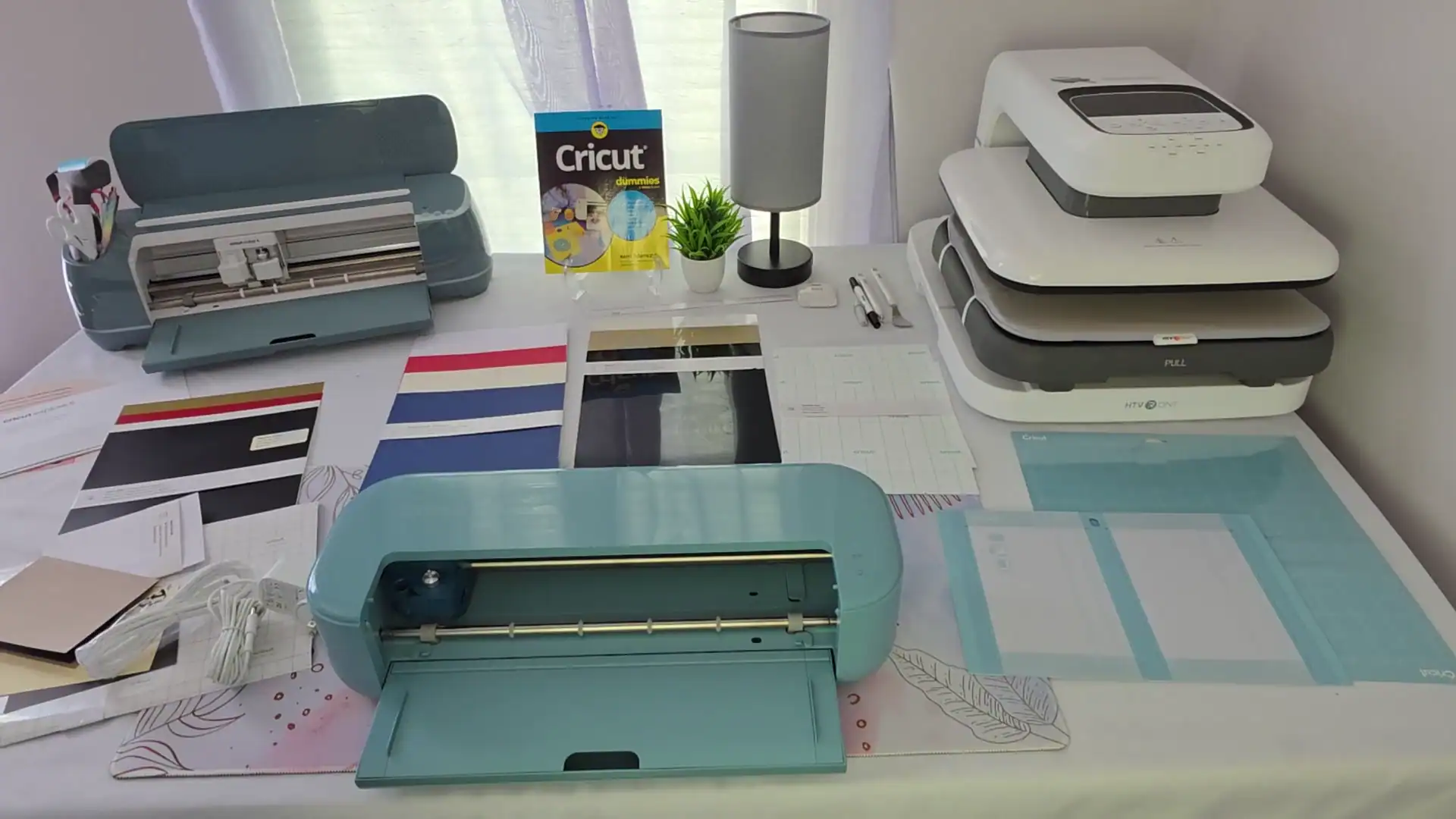
Let’s get straight to it. Cricut says they were going for sleek, simplified, and 30% more compact. What that really means:
- They squished it flatter
- Got rid of the lid
- Fewer buttons
- No side storage at all
- About 3 inches less wide overall
By the numbers, the Explore 5 is 19.8” long, 7.5” deep, and 4.7” tall at about 10 pounds. The Explore 4 is 22.2” long, 7” deep, and 5.9” tall, about a pound heavier.
So yes, it’s more compact. But honestly? Who cares. These aren’t very big machines to begin with. Once you set it up, you’re usually not moving it around. Shaving off a few inches doesn’t meaningfully change your crafting experience.
Here’s my bigger issue: I absolutely hate this open-top design.
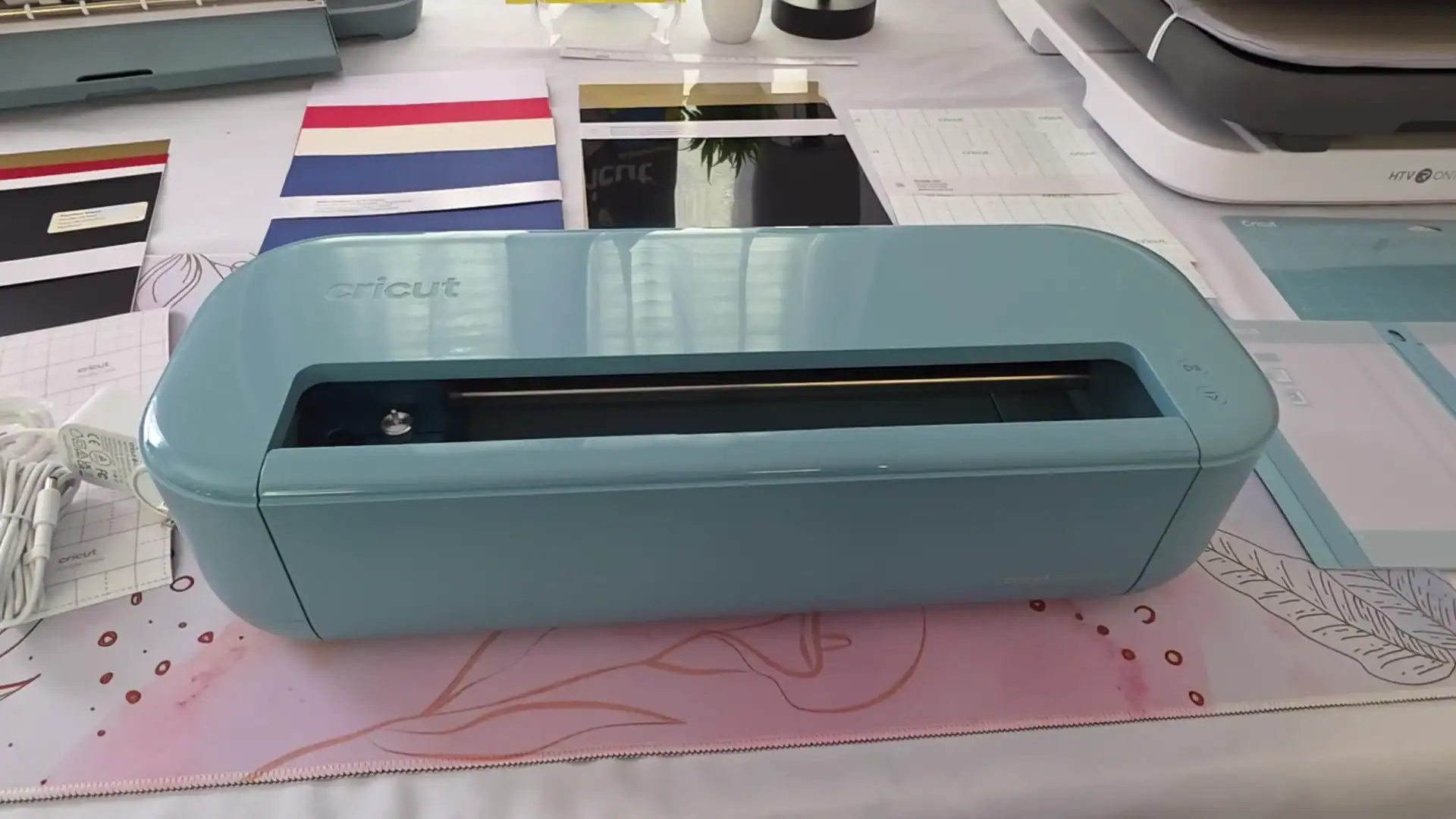
These are precision cutting machines. Keeping them clean matters. That giant opening leaves the internals exposed to dust, pet hair, glitter, whatever’s floating around your craft room. If you buy this machine, get a dust cover from Amazon. Just something to throw over it when you’re not using it.
Performance-wise, I haven’t found meaningful upgrades. Cutting speed appears to be the same as the Explore 4 at 14.1 inches per second.
So I’m still asking… what’s actually new?
Technical Specs
| Feature | Spec |
|---|---|
| Cutting Speed | ~14.1 in/sec |
| Connectivity | Bluetooth + USB-C |
| Dimensions | 19.8” x 7.5” x 4.7” |
| Weight | ~10 lbs |
| Compatible Materials | Smart vinyl, iron-on, cardstock, printable vinyl, paper, thin plastics |
| Adaptive Tools | No (Maker series only) |
How Much Does the Cricut Explore 5 Cost?
At launch, the machine by itself was $199, though it was already selling out fast. The Machine plus Essentials Bundle (what I bought) was $249. There was also an Ultimate Plus Bundle at $349 and another Ultimate bundle listed at $358.99 on sale for $319, both out of stock.
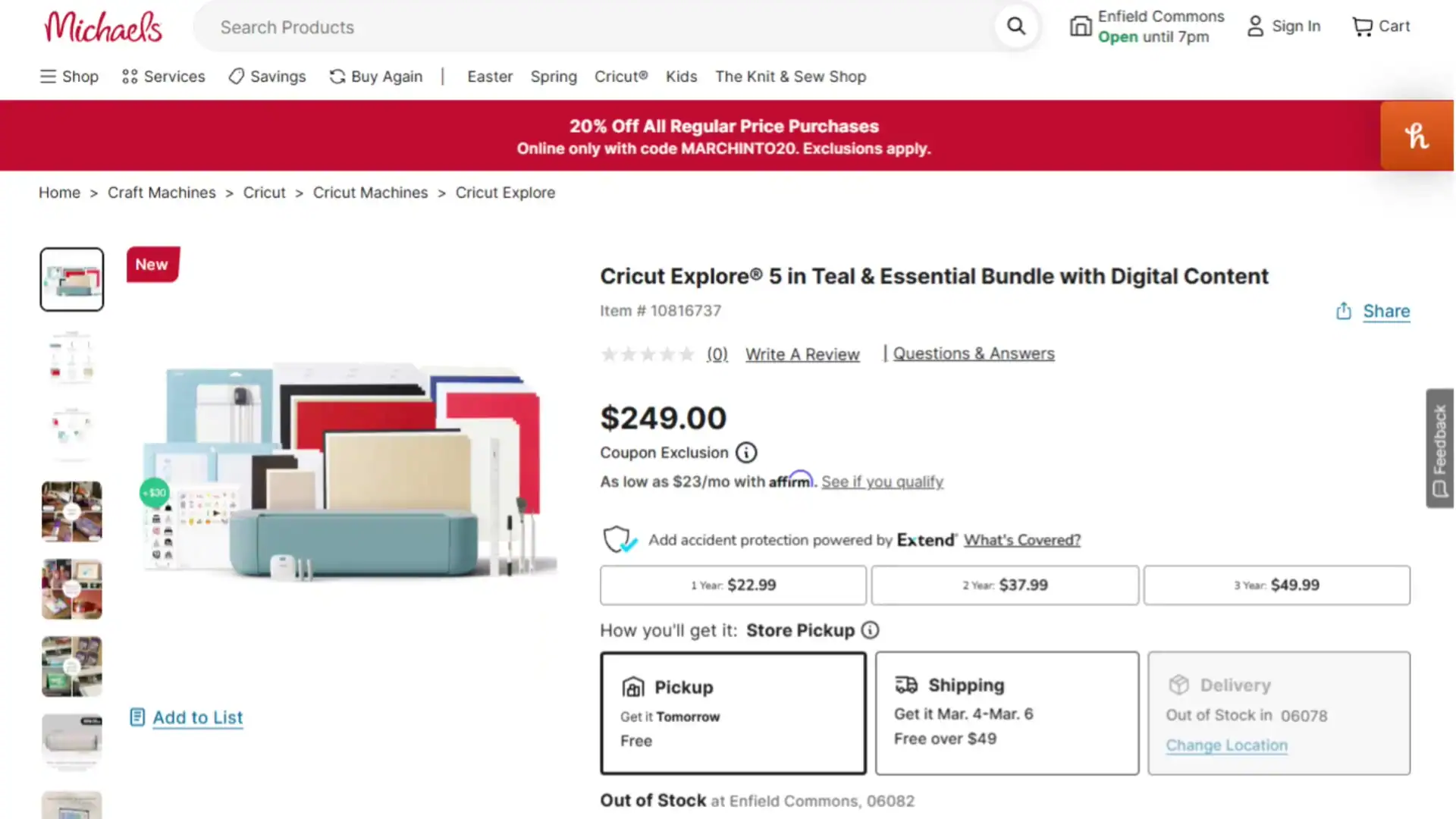
Availability at launch was a little chaotic.
Here’s how it fits into Cricut’s lineup by machine-only price:
- Cricut Venture: $599
- Maker 4: $399
- Explore 5: $199
- Joy Xtra: $179
- Joy 2: $99
The Explore 5 lands right in the middle. It’s not a powerhouse like the Maker or Venture, but it’s more capable than the smaller Joy models. For what you get, $199 is a pretty reasonable price point. You can grab the Explore 5 here.
What’s in the Cricut Explore 5 Essentials Bundle?

Let me lay out everything that comes in the box.
What’s included:
- Cricut Explore 5 machine (the teal color is pretty; I’m curious if it’ll be a Michaels exclusive like the sage Maker 4 was, since I didn’t see teal listed on Cricut’s website)
- 12×12 inch light grip mat
- Card mat for insert/cutaway cards
- A trimmer (the arm is really stiff to open, but I love these and my old one was getting dull, so I was happy to see it)
- Transfer tape, smart vinyl, and smart iron-on sheets
- Insert cards
- A weeding hook
- A spatula for lifting material off the mat
- A cheap paper ruler and a double-sided marker
- User guide and setup instructions
What’s NOT included: scissors and tweezers. Cricut literally sells an Essential Tool Set on their website with these items, so it genuinely doesn’t make sense why they aren’t in an Essentials Bundle. And that paper ruler? They used to at least give you a metal one.
I kept looking around in the packaging thinking I must have missed something. I hadn’t.
You’ll definitely want to pick up quality weeding tweezers separately. I use mine constantly. Also grab a mat variety pack with standard and strong grip mats before you go beyond paper or thin vinyl.
How Do You Set Up the Cricut Explore 5?

Setup is quick. You don’t have to use the USB-C cord if you connect via Bluetooth.
- Go to cricut.com/setup and install Cricut Design Space. Select the Explore 5 when adding a new machine.
- Connect via Bluetooth or USB-C. Update firmware if prompted before starting your first project.
- The software walks you through finishing setup and your first cut. Follow the prompts and it’ll guide you through loading material and making your first project.
New to Design Space? My beginner’s tutorial for Cricut Design Space walks you through everything from the start.
Is the Cricut Explore 5 Worth It? My Honest Review
I’m not blown away.
It works exactly how an Explore machine should work. But I don’t see any meaningful upgrades or real innovation from the older models.
What I would have loved to see? A Cricut with a printer built right in. Instead of designing something, sending it to a separate printer, then loading it back to cut, it could just print and cut in one place. Or add a laser engraver like the xTool M1 Ultra. That would completely change what you can do with stickers, labels, and full-color projects.
Update: Cricut listened! Six months later they launched exactly that, a machine that prints, laminates and cuts stickers in one box. I tested both versions in my Cricut StickerPix review.
This just feels like a redesign. Not a real upgrade.
If you already own an Explore 4 or Maker 4, I would not upgrade. There’s nothing here that would meaningfully improve your crafting.
One more reason to sit tight if you own a Maker: a Cricut Maker 5 has already surfaced on Target, and from the listing it looks like this same redesign applied to the Maker line.
If you’re brand new to Cricut and don’t own a machine yet, it’s still a solid entry-level machine that handles a wide range of everyday projects.
Tips & Troubleshooting
- Get a dust cover immediately. The open top is a real concern. Even a towel helps, but a purpose-built cover is worth the few dollars.
- Calibrate before your first real project. Run calibration in Design Space for the cleanest cuts.
- Use the right mat. The included light grip mat works for paper and thin vinyl. You’ll need a standard grip mat for most everyday vinyl work.
- Load smart vinyl straight. Feed it under the guides long-ways and let the rollers grab it before pressing go.
- Update firmware when prompted. Always do this before your first project.
- Buy tweezers separately. They’re not in the bundle. Don’t try to weed without them.
Running into cut quality problems? My post on Top 10 Cricut Problems and How to Fix Them covers the most common frustrations.
FAQ
Is the Cricut Explore 5 worth it?
For a first machine, yes. At $199 it handles vinyl, iron-on, cardstock, and stickers with no fuss. But if you already own an Explore 4 or any Maker, there’s no meaningful upgrade here, so keep your money.
Is the Cricut Explore 5 faster than the Explore 4?
No. Cutting speed is the same at about 14.1 inches per second.
Can the Explore 5 use Maker tools like the rotary or knife blade?
No. It doesn’t have the adaptive tool system. No knife blade, rotary blade, or engraving tip, and it won’t cut thick materials like wood or heavy canvas.
What’s missing from the Essentials bundle?
Scissors and tweezers. Cricut sells an Essential Tool Set with these items, so plan to pick them up separately. Grab a weeding tool set at minimum.
Is the open top design a problem?
It can be, especially if you have pets, kids, or a dusty workspace. Plan for a dust cover from day one.
Should I upgrade from the Explore 4?
Personally? No. There’s nothing here that justifies the cost of upgrading.
Final Thoughts
The Explore 5 is a capable machine. It cuts exactly like an Explore should. But it’s a redesign, not an upgrade, and a few of the changes (the open top, the missing tools, the cheap ruler) actually feel like steps backward.
If you want to learn your Cricut without feeling overwhelmed, my book Cricut For Dummies walks you through everything step-by-step in plain English. Choosing the right machine, setting it up, mastering Design Space, vinyl, print then cut, stickers: all in one place instead of scattered across dozens of videos.

Community
Are you excited about the Explore 5? Do you like the new look? Or are you sticking with the machine you already have? Let me know in the comments!
And do you want to see more projects with the Explore 5, or should I put it head-to-head against the Maker 4? Because that comparison video is coming, with real speed tests, tool breakdowns, and a clear answer on which one actually makes more sense. Subscribe so you don’t miss it.
Share your projects and tag me with #KerriCraftsIt on Instagram @KerriCraftsIt, or join our Cricut SVG Facebook group for extra support.