Wondering where to find laser cut files? The best source I've found is Creative Fabrica, where I get most of my fonts, SVGs, and laser files, and have for years.
But I'm not going to just point you at a website and wish you luck. In this post, I'm sharing the nine exact laser cut files I used in my xTool M2 review, what I made with each one, and the one big gotcha about laser SVGs that trips up almost every new laser owner. Several of them became real projects, like this layered felt ornament.
Quick note before we dive in: this post is all about laser cut files. If you're hunting for fonts and graphics for Cricut and general crafting, I cover that in my guide to where to get the best fonts and graphics.
This post contains affiliate links. If you buy through them, I may earn a small commission at no extra cost to you.
Quick Links / Table of Contents
- Where to Find Laser Cut Files: My Go-To Source
- 9 Laser Cut Files I Actually Used
- Why Your Laser SVG Has No Colors
- What to Look for When Buying Laser Cut Files
- FAQ
- Related Guides
Where to Find Laser Cut Files: My Go-To Source
If you've watched my channel before, you've probably heard me mention Creative Fabrica quite a bit. It's where I get most of my fonts, SVGs, and laser files, and every design in this post came from there.
Here's why I keep coming back:
- Unlimited downloads for $3.99/month. The subscription includes a commercial license, so you can sell what you make.
- Dedicated laser files. You'll find true laser designs like layered puzzles and name signs, not just general SVGs.
- One account for everything. Fonts, sticker bundles, and laser files all live in one library.
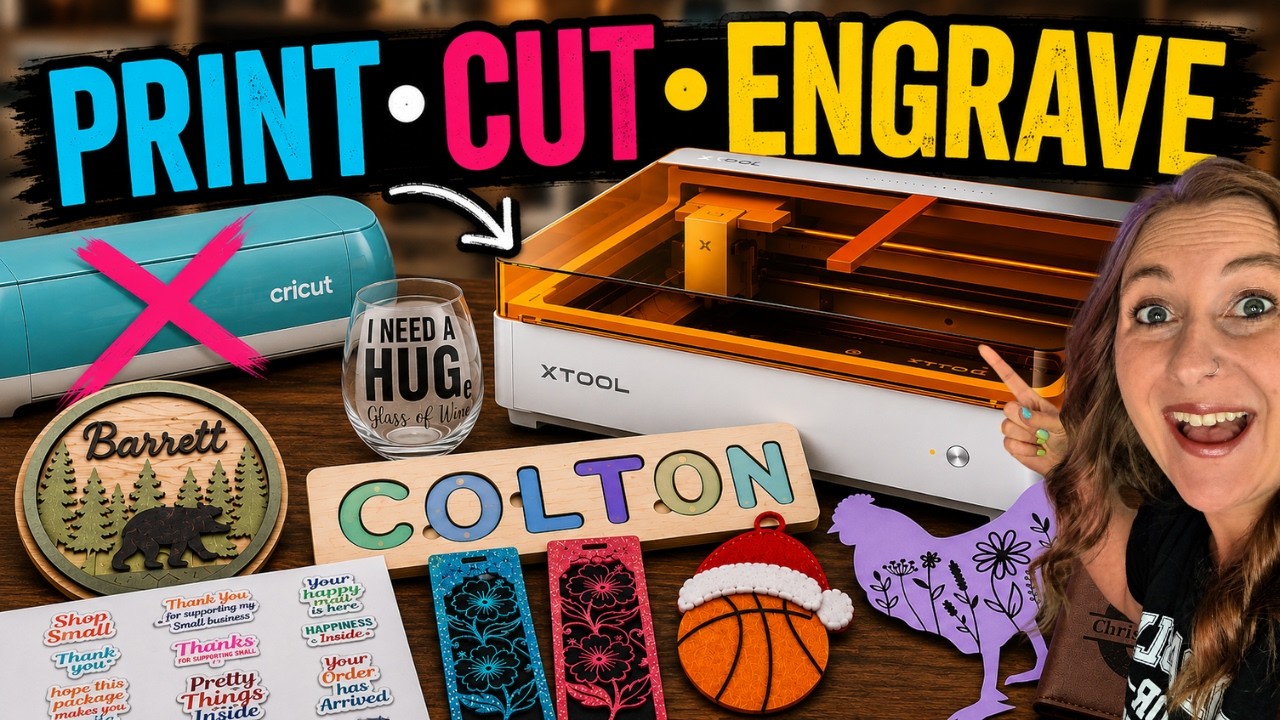
When I tested the xTool M2, I pulled every single project design from Creative Fabrica. Nine files, nine finished projects.
Watch me make all nine projects in my xTool M2 review:
 24:46
24:46
Watch the full tutorial
Can the xTool M2 Replace My Cricut, Laser & Printer?
💜 Use code KERRI116 at checkout to see if additional savings apply to your order.
9 Laser Cut Files I Actually Used
These aren't random picks from a bestseller list. I bought, cut, and finished a project with every file below, so you can see exactly what each one becomes.
1. Wooden Alphabet Puzzle
This alphabet puzzle laser file became a full-color personalized name puzzle. It's a really clever design with little finger cutouts that make it easier for small hands to remove the pieces.
The M2 printed the colors directly onto 3mm basswood, so I skipped painting every tiny layer by hand. See the whole build in my full-color wooden name puzzle tutorial.

2. Small Business Sticker Bundle

I used this small business packaging stickers bundle to print and cut stickers you can tuck into customer orders. I added an offset around each design to create the cut line, just like I would with a Cricut.
3. Floral Bookmark SVG Bundle
This floral bookmark SVG bundle turned into my glitter cardstock bookmarks. The intricate floral cutouts are exactly the kind of detail lasers handle beautifully, and the cardstock came out with no scorch marks.

4. I Need a Huge Glass of Wine SVG
Some days just call for this I need a huge glass of wine SVG. I cut it from laser-safe adhesive vinyl and applied it to a wine glass. Relatable? Absolutely.

5. Floral Chicken SVG
This sweet floral chicken SVG became a heat transfer vinyl shirt for my friend, in memory of her favorite chicken from my flock. I cut it from laser-safe purple HTV and pressed it onto a shirt.

6. Basketball Ornament SVG
My son loves basketball, so this personalized sports ornament SVG was an easy pick. I cut each layer from a different color of felt and glued them into a layered ornament.

7. Super Stacked Font
Fonts count as laser files too! I used the Super Stacked font to create the engraving design for a leather-wrapped flask. The stacked style packs a name and a phrase into one tidy design.
8. Alphabet Split Letter Monogram
This split letter monogram SVG font is what I engraved on a genuine leather wallet. Split monograms are perfect for masculine gifts, and the engraving came out dark and clean.

9. Round Family Name Sign Bundle

I used this personalized family name sign bundle for the round Barrett bear sign you'll spot in the video. Name sign bundles like this are some of the best-selling laser projects around.
Why Your Laser SVG Has No Colors
Here's the gotcha nobody warns you about. One thing you'll quickly notice when you start working with laser files is that most SVGs are designed for cutting, not full-color printing.
That's because traditionally you'd cut out all the pieces first and then paint them afterwards. The file only needs cut lines, so designers don't bother assigning pretty colors to each layer.
That's fine for a cut-only laser. But if you have a full-color printing machine like the xTool M2, which prints your design before it cuts, the file needs colors assigned to each layer first.
You can absolutely recolor a file in a free program like Inkscape. But this is one area where xTool Studio really stands out. I simply clicked on each layer right inside xTool Studio and assigned the colors I wanted. No extra software, no recoloring every tiny piece by hand.
One more expectation-setter: the M2 doesn't print white ink. It uses your material's color as the background, so colors print softer on natural wood than they look on screen. On my puzzle, I actually loved the softer, natural look.
What to Look for When Buying Laser Cut Files
Not every SVG in a marketplace is ready for your laser. Before you hit buy, check these four things:
- Layered vs. single-line designs. Layered files (like puzzles and stacked signs) give you separate pieces to cut and assemble. Single-line designs are better for engraving or simple cuts. Make sure the listing matches your project.
- Commercial license. If you plan to sell your finished projects, confirm the license allows it. A Creative Fabrica subscription includes a commercial license with your downloads.
- File formats. SVG is the workhorse for laser software, and many listings include PNG as well. xTool Studio accepts SVG, DXF, PNG, JPG/JPEG, BMP, TIF, and PDF, with SVG and DXF best for cutting and PNG or JPG for engraving and print-then-cut. Check the format list on the product page before buying so it matches what your software imports.
- Preview the layers. Product photos that show the individual layers or an assembly preview tell you the designer actually built it for laser crafting.
FAQ
Q: Where can I find laser cut files? A: Creative Fabrica is my go-to source for laser cut files, fonts, and SVGs. A subscription gives you unlimited downloads with a commercial license, and it carries dedicated laser designs like layered puzzles, ornaments, and name signs.
Q: What file format do laser cutters use? A: SVG is the most common format for laser cutting software, including xTool Studio. Many design listings also include PNG versions, which work well for print-then-cut projects like stickers.
Q: Can I sell items made from laser cut files? A: It depends on the license that comes with the file. Always check before selling. Creative Fabrica includes a commercial license with subscription downloads, which is a big reason it's my go-to.
Q: Why do my laser SVG files look plain or uncolored? A: Most laser SVGs are designed for a cut-then-paint workflow, so they only contain cut lines. If your machine prints in full color, like the xTool M2, you'll assign a color to each layer in your software first. In xTool Studio, you just click a layer and pick a color.
Q: Are Cricut SVGs and laser cut files the same thing? A: They're the same file type, and many work in both machines. The difference is design intent. True laser files are often layered and sized for materials like 3mm basswood, while Cricut SVGs are usually built for vinyl and cardstock.
Community Invite
Now it's your turn! Pick one file that matches a project you've been wanting to make, whether that's a name puzzle for a little one or bookmarks for your book club, and start creating.
If you're still shopping for the machine itself, the xTool M2 is what I used for every project in this post. Use code KERRI116 at checkout to see if additional savings apply to your order. You can read my full thoughts in my xTool M2 review.
Share your creations, I'd love to see them! Tag @KerriCraftsIt on Instagram or post in my Kerri Crafts It Facebook Group.