If you’re like me and love crafting with your Cricut, you know how much great quality photos matter, especially if you’re selling your creations online. High-quality pictures can make or break your Etsy shop, Facebook Marketplace listings, or website. But taking professional photos can be tricky, time-consuming, and expensive. If you are building a shop, the Cricut business starter guide covers pricing and platforms.
That’s why I created a video to go with this post. Watch my “How To Make Your Cricut Products Look Irresistible” video here on YouTube or watch below:
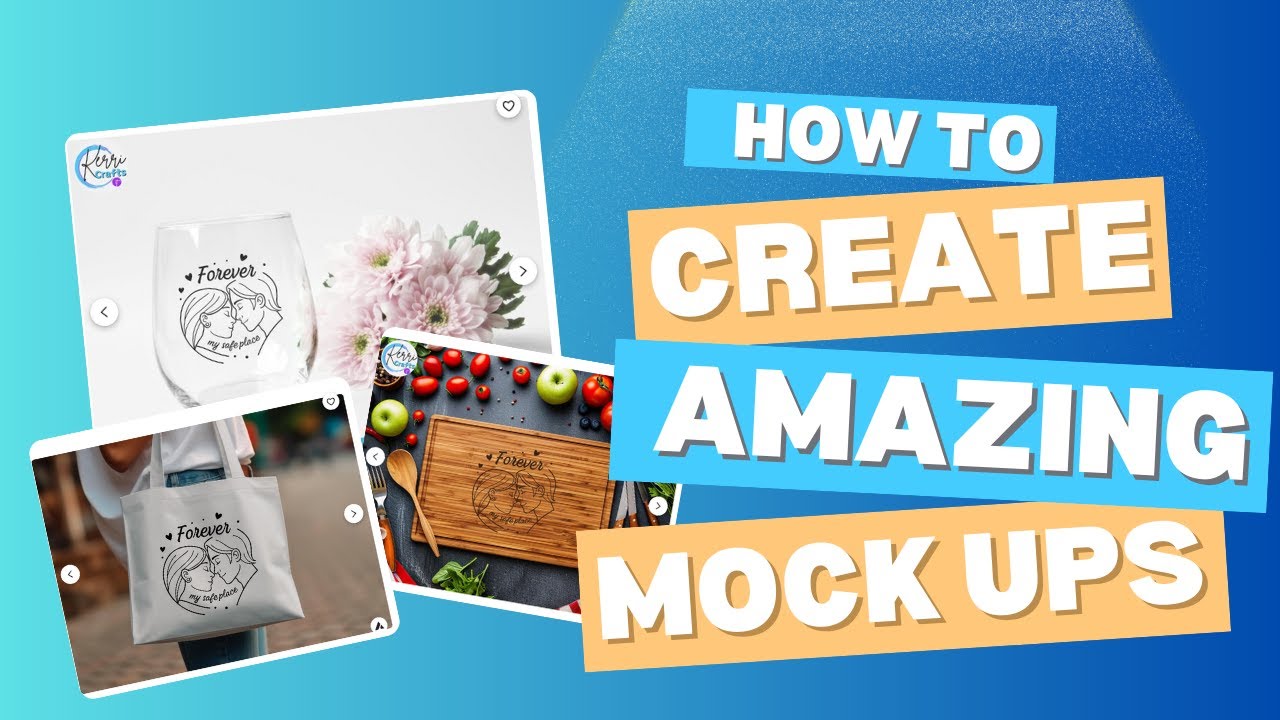
Here’s a game-changing shortcut: using product mockups from Creative Fabrica. These mockups make your products look real and polished without you ever having to make the physical item first. Let’s walk through how to use them and how they can help grow your Cricut business.
💡 If you’re selling Cricut signs, check out my guide on Cricut Projects to Sell: Wood Round Signs — it’s full of creative ideas for crafting and photographing products that stand out online.
Quick Links
- Materials & Tools
- Step-by-Step Instructions
- Tips & Troubleshooting
- Why I Love Creative Fabrica for My Cricut Business
- FAQ
- More Cricut Project You’ll Love
Materials & Tools
You don’t need much to get started! Here’s what I use:
- A computer with internet access
- Creative Fabrica All Access Subscription — unlimited SVGs, fonts, and mockups, all with commercial licenses.
- Cricut Design Space (free to download)
- Cricut Joy Xtra for small mockup or print-then-cut projects
- The Snipping Tool (Windows) or Screenshot shortcut (Mac)
- Canva Pro for quick editing and mockup touch-ups
Step-by-Step Instructions
Step 1: Discover Product Mockups on Creative Fabrica
Head to Creative Fabrica and click on the Graphics tab. Scroll down to find Product Mockups—you’ll see options for everything from mugs and shirts to baby onesies and holiday-themed items. My product mockups overview shows what is available before you start.

These blank mockups let you showcase your designs professionally without using vinyl or blanks. It’s a huge time and money saver, and they look amazing on social media and Etsy listings.
Step 2: Download Your Mockup
Once you find a mockup you love, click Download. The file usually saves to your Downloads folder. Move it to a folder you can easily find later—like Cricut Projects—so you can stay organized.
Step 3: Choose a Design for Your Mockup
Next, grab a design to place on your mockup. I usually head back to Creative Fabrica and search for SVG files.
For example, if I’m working on Easter onesies, I’ll search for “Easter baby SVG.” Creative Fabrica has thousands of options, from cute holiday bundles to funny sayings. Download your favorite and save it in the same folder as your mockup.
If you plan to turn your mockups into real projects, stock up on Oracal 651 vinyl — it’s long-lasting, easy to weed, and perfect for professional-quality results.
👕 If you’re a beginner looking for fun project ideas, you’ll love my tutorial on Cricut Projects for Beginners: Mommy & Me T-shirts — it’s a simple and adorable way to practice your vinyl skills while creating matching shirts.
🎥 Watch my full car decal tutorial to see how I use downloaded SVGs in Cricut Design Space and apply them to real projects.
Step 4: Upload Files to Cricut Design Space
Open Cricut Design Space and click Upload.
If you don’t already have it, you can download Cricut Design Space here before starting.
- Upload your mockup image first.
- Click Upload Image, select your mockup, and upload it as a Complex Image.
- Choose Print then Cut and insert it onto your canvas.
- Upload your SVG design next.
- Click Upload Image again and select your SVG file.
- Insert it onto your canvas.
Step 5: Arrange and Resize Your Design
Drag your design over the mockup and resize it to fit perfectly. You can zoom in for precision or change colors to make your design blend naturally.
For example, if your mockup is a white onesie and your design has white text, try changing that text color so it stands out.
Step 6: Save the Image with the Snipping Tool
Once everything looks perfect, save your mockup as a picture for your listings or social media.
On Windows:
- Open the Snipping Tool.
- Click New and drag around your design.
- Click File > Save As, name it, and save it to your computer.
Now you have a realistic, professional photo of your Cricut design without ever using materials!
Once you’re ready to make your mockups real, these 12-inch wooden sign blanks and 20 oz skinny tumblers are perfect for turning your designs into beautiful finished products.
If you want to take it up a notch, the Cricut Maker 4 cuts vinyl and other materials with amazing precision — perfect for business use.
🎥 Watch my Cricut Maker setup and review video to see how I set up my machine and why it’s one of my favorites for professional-quality projects.
Tips & Troubleshooting
- Stay organized: Keep mockups and SVGs in labeled folders.
- Experiment with backgrounds: Try different mockups for variety.
- Avoid stretching your design: Always resize proportionally to keep it looking natural.
- Update regularly: Swap mockups for seasonal looks or special promotions.
I like to use Canva Pro to quickly edit and clean up my mockup photos. It’s easy to use and great for getting your pictures ready to share online.
Why I Love Creative Fabrica for My Cricut Business
- All Access Plan ($29/month): Unlimited downloads for fonts, graphics, SVGs, embroidery designs, and mockups—with commercial licenses included.
- Commercial License Included: Perfect for selling your Cricut creations legally and safely.
- One-Stop Shop: No need to hop between multiple websites. Everything you need is right there.
- Affordable Plans: Try the craft or font-only subscriptions if you don’t want the full plan.
- Endless Inspiration: Search any holiday or theme for instant project ideas!
🛍️ Thinking about turning your Cricut hobby into a business? Read my post on How to Start a Cricut Business for practical tips on pricing, branding, and building a shop that sells.
👉 Try Creative Fabrica’s All Access Subscription here to unlock thousands of fonts, SVGs, and mockups.
FAQ
Do I need a Cricut machine to use mockups?
No! You can use mockups to visualize your designs even before cutting anything.
Can I sell items made with Creative Fabrica designs?
Yes—as long as you have the commercial license, which comes with your subscription or purchase.
Do I have to use Cricut Design Space for this?
Not necessarily. You can use Canva, Photoshop, or other editors if you prefer.
Are product mockups free on Creative Fabrica?
Some are free, but most come with a subscription or individual purchase.
Can I customize mockup backgrounds or colors?
Yes! You can upload multiple mockups or adjust colors in Design Space or photo editors.
More Cricut Project You’ll Love
If you liked learning how to make your Cricut photos look professional, you’ll love these other tutorials and blog posts. They’ll help you take what you learned even further by improving your designs, growing your Cricut business, and finding new projects to try.
✨ Cricut Vinyl Projects for Beginners – Get inspired with easy vinyl projects that work perfectly with the mockup tips from this post.
🛍️ Start a Cricut Business – Learn how to price your crafts, promote your shop, and turn your Cricut hobby into a real business.