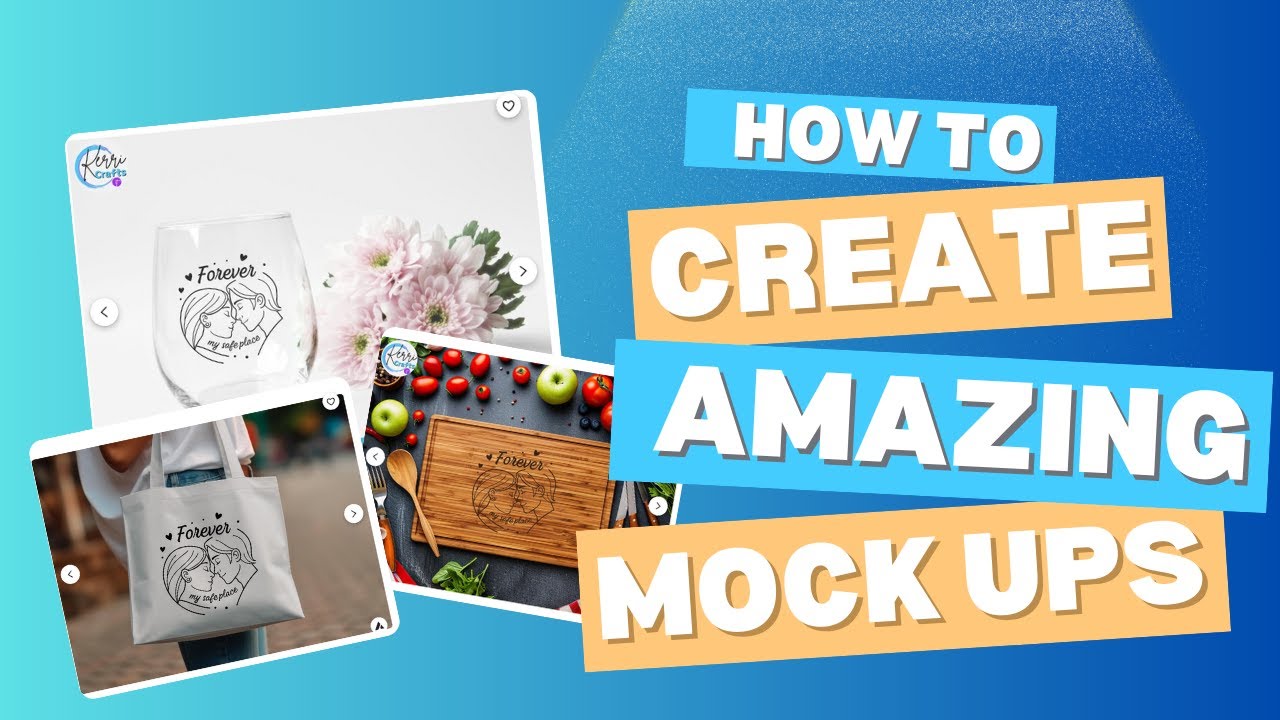
If you’re like me and love crafting with a Cricut, you know how important it is to have great photos of your projects—especially if you’re selling them online. But sometimes, getting professional-looking pictures can be tricky, time-consuming, and expensive. That’s why I’m so excited to share a simple, game-changing tip that will save you tons of time and money: using product mockups from Creative Fabrica.
In this post, I’ll walk you through everything you need to know about using product mockups to make your Cricut creations look irresistible on Etsy, Facebook Marketplace, Instagram, or your own website. Plus, I’ll share why I love Creative Fabrica for all my design needs and how their subscriptions can make running your Cricut business so much easier.
Table of Contents
- Step 1: Discovering Product Mockups on Creative Fabrica
- Step 2: Download Your Mockup
- Step 3: Find a Design to Use on Your Mockup
- Step 4: Upload Your Files to Cricut Design Space
- Step 5: Arrange and Resize Your Design on the Mockup
- Step 6: Save Your Mockup Image Using the Snipping Tool
- Step 7: Why I Love Creative Fabrica for My Cricut Business
- Step 8: Try Different Mockups for Variety
- Step 9: Use Your Mockup Photos to Boost Sales
- FAQs About Using Product Mockups for Your Cricut Business
- Final Thoughts
Step 1: Discovering Product Mockups on Creative Fabrica
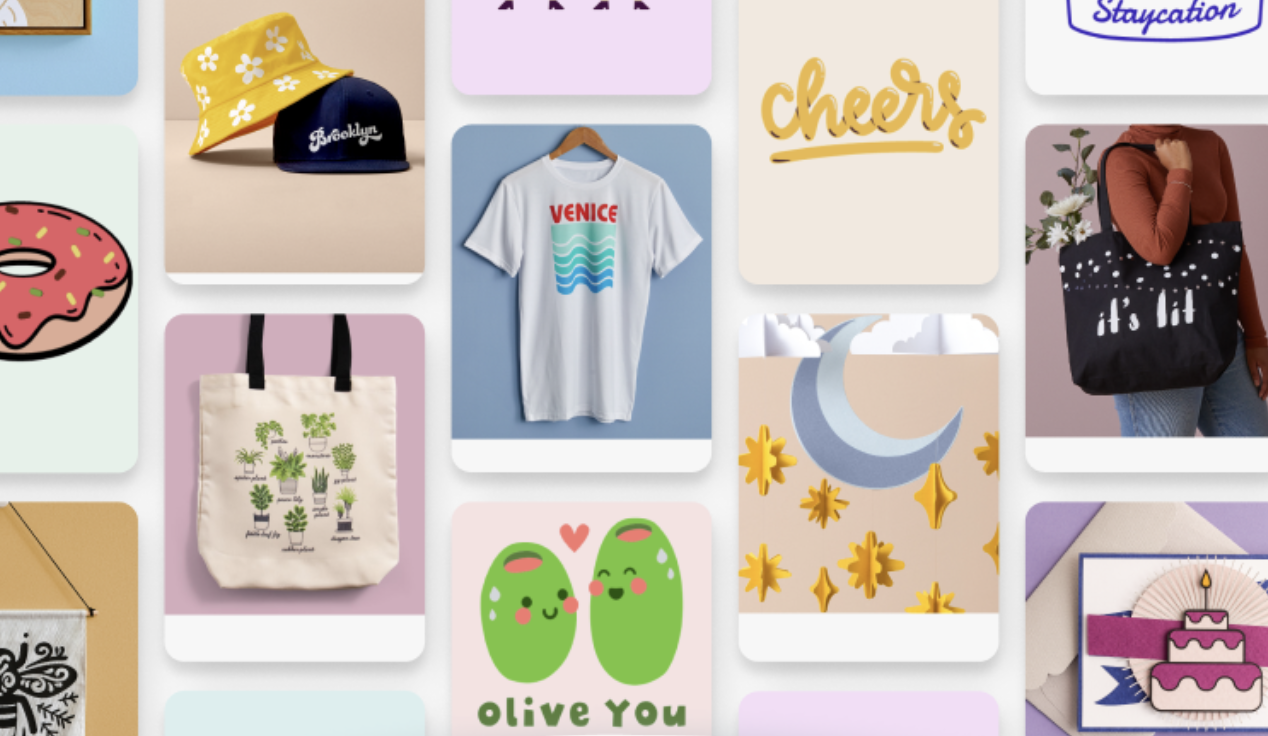
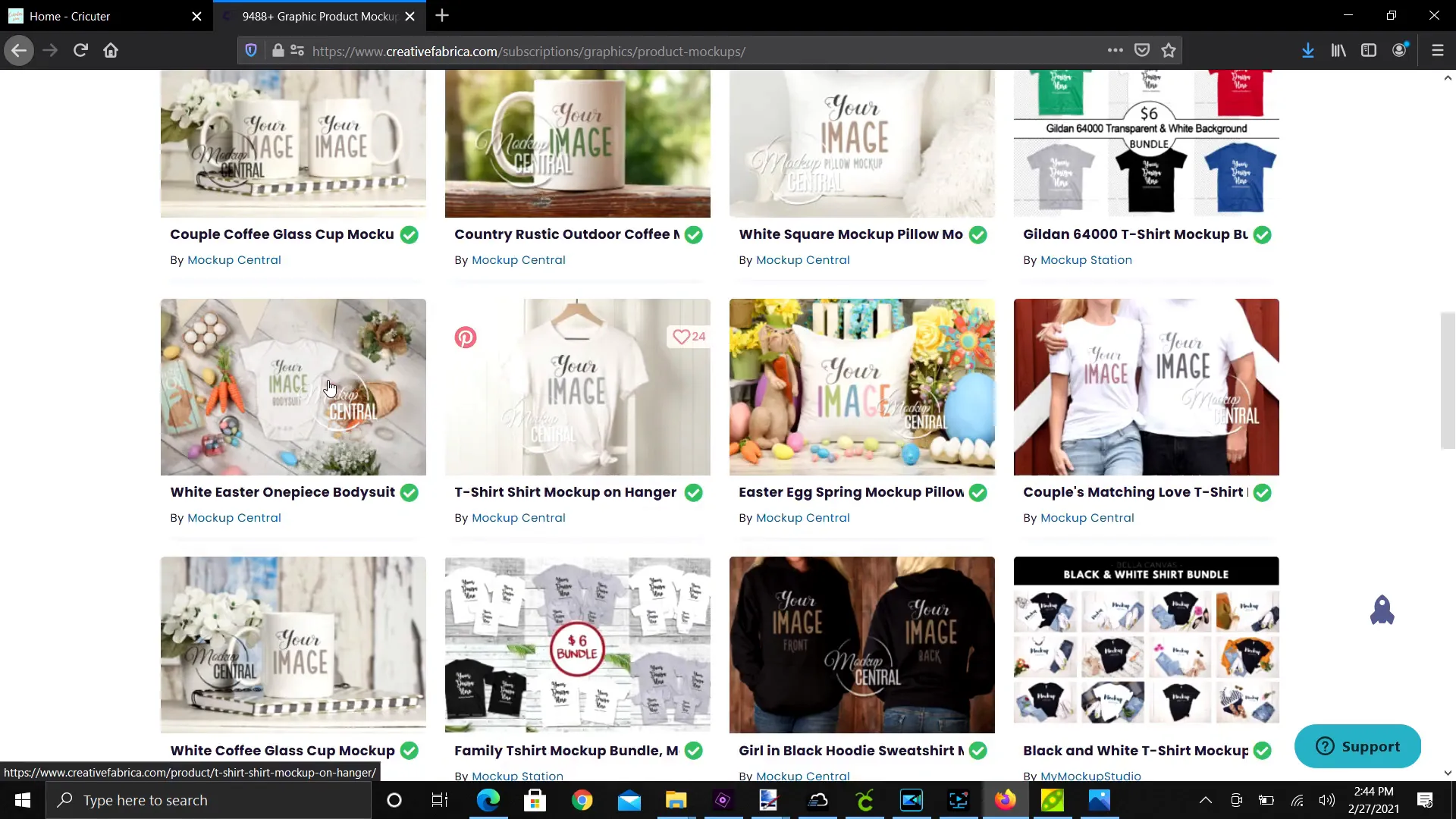
While browsing Creative Fabrica, I stumbled upon something incredible under the graphics tab: product mockups. This section is packed with blank mockups that you can use to showcase your designs without ever having to make the actual product first.
They have all kinds of mockups like onesies, mugs, pillows, stuffed animals, and even holiday-specific items like Easter onesies. Imagine how much time and money you can save by not wasting vinyl, materials, or your precious time making a physical product just to take photos!
These mockups are perfect for creating professional photos to post on Etsy or your website, and they do all the hard work of making your design look real.
Step 2: Download Your Mockup
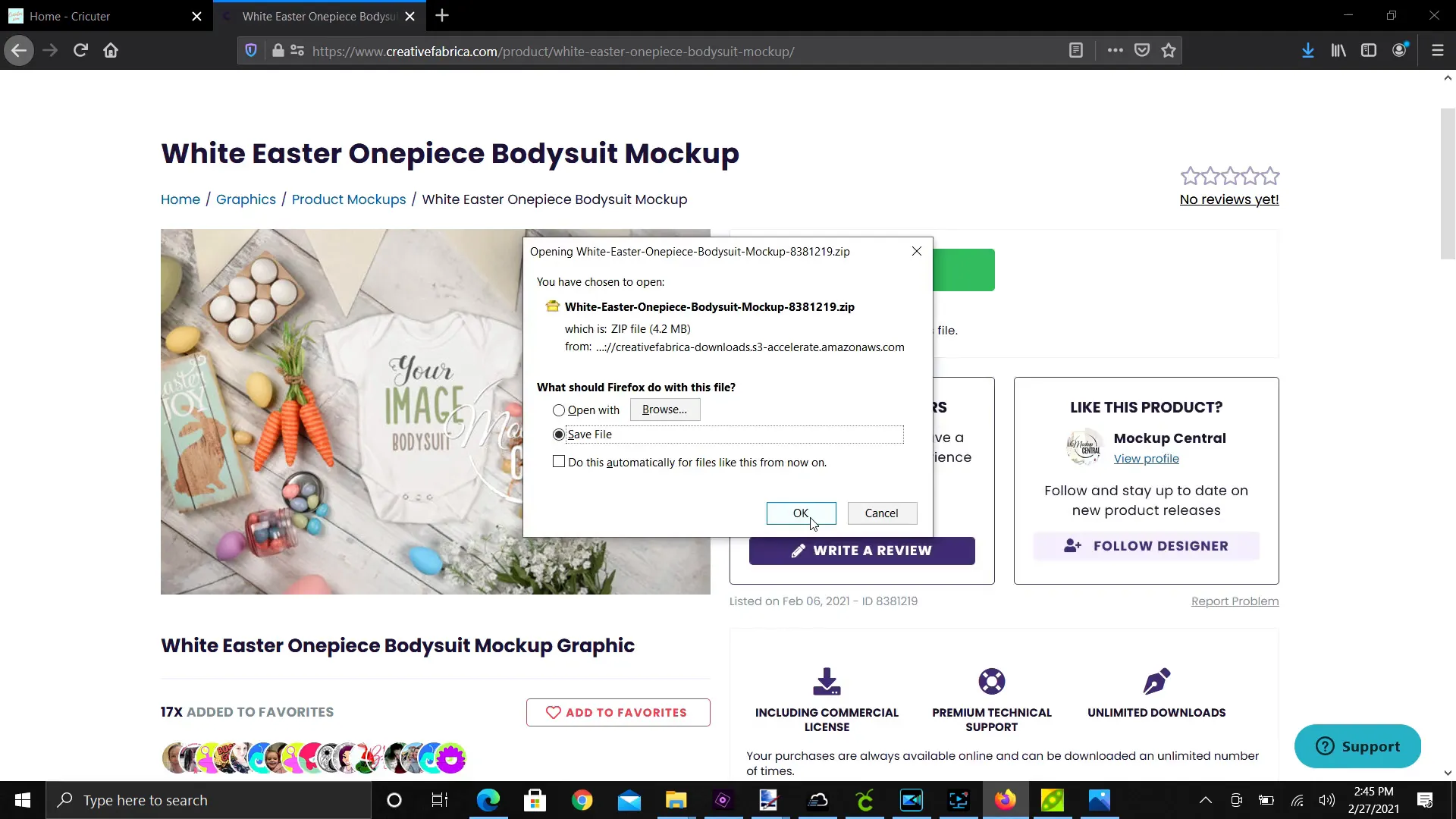
Once you find a mockup you like, downloading it is super easy. Just click the download button, and the file will save to your computer—usually in your downloads folder.
From there, right-click the file and choose “Save As” to move it into a folder you’ll remember later. I always keep a specific folder for my Cricut projects so everything stays organized.
Step 3: Find a Design to Use on Your Mockup
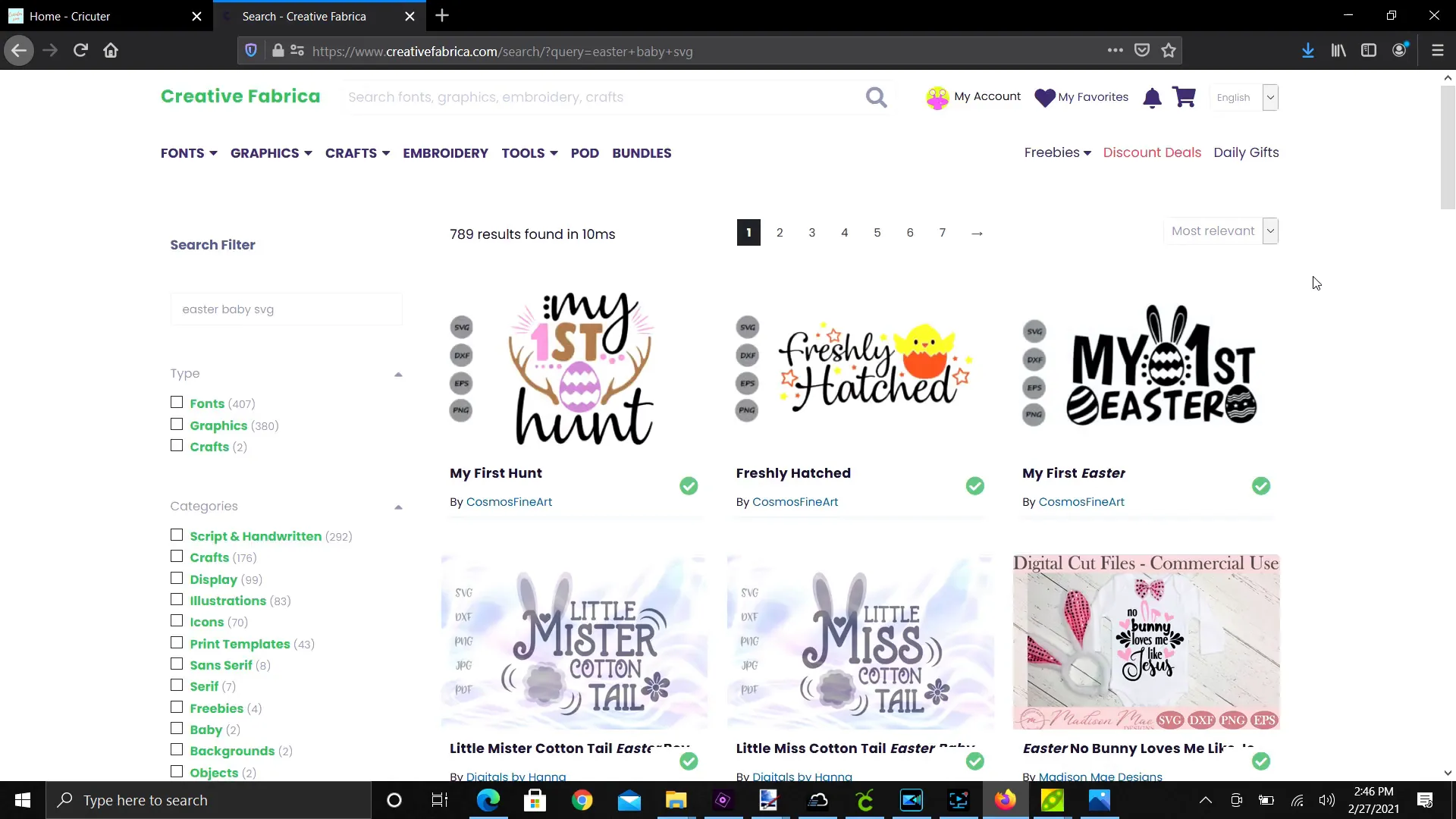
Next, you’ll want to find a design to place on your mockup. I usually go back to Creative Fabrica and search for SVG files related to my project. For example, if I’m working on Easter onesies, I type “Easter baby SVG” into the search bar.
There are so many adorable designs to choose from, like cute Easter bundles that are perfect for baby clothes. Download the SVG file you want, and save it in the same folder as your mockup for easy access.
Step 4: Upload Your Files to Cricut Design Space
Now it’s time to bring your mockup and design into Cricut Design Space. Open Design Space and click the Upload button.
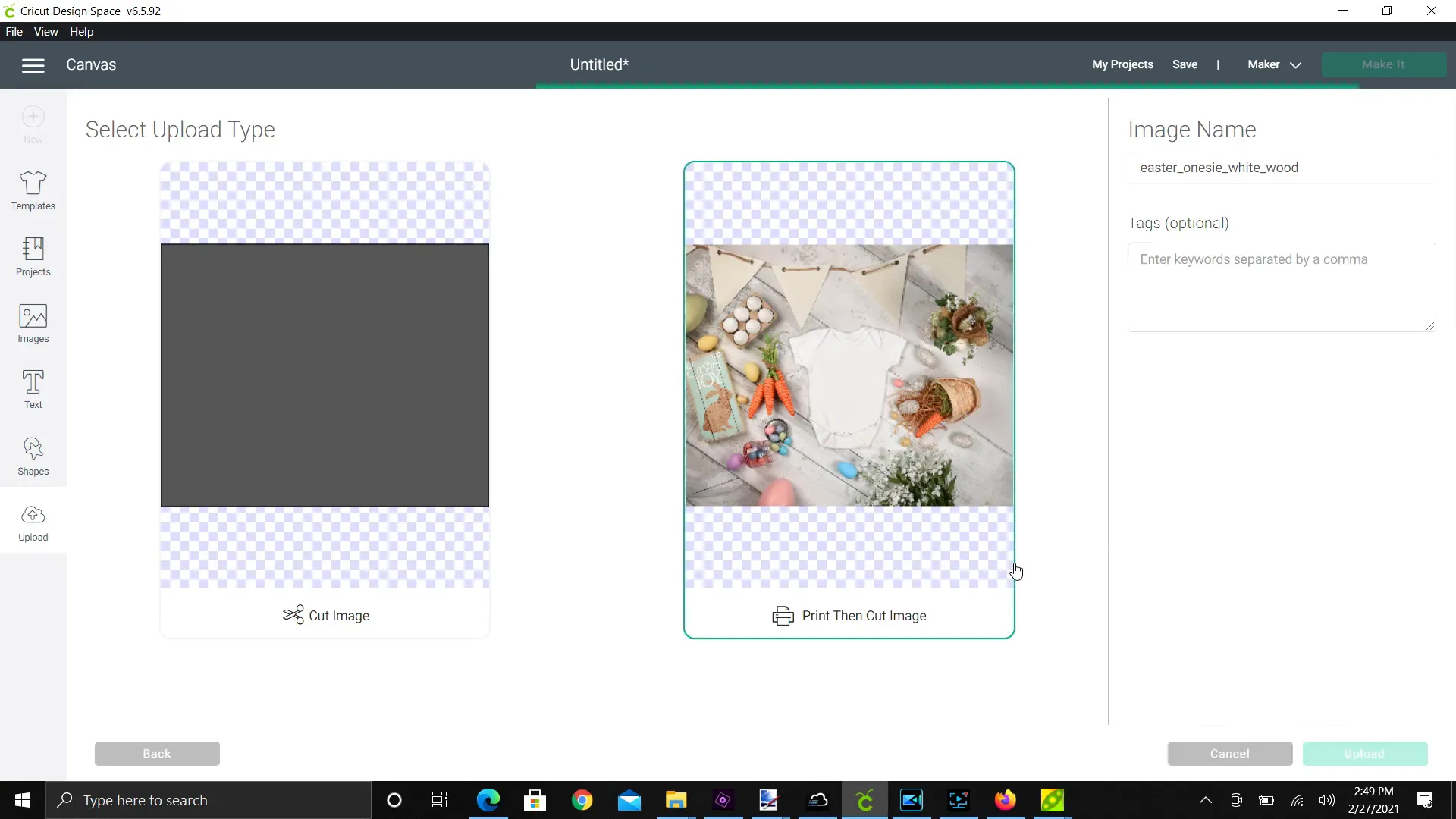
First, upload your mockup image:
- Click “Upload Image” and browse to the folder where you saved your mockup.
- Select the mockup file and upload it as a Complex image.
- Choose “Print then Cut” as the image type, then upload.
- Insert the image onto your canvas.
Next, upload the SVG design you want to add:
- Click “Upload” again, then “Upload Image.”
- Browse and select your SVG design file.
- Upload and insert the design onto your canvas.
Step 5: Arrange and Resize Your Design on the Mockup
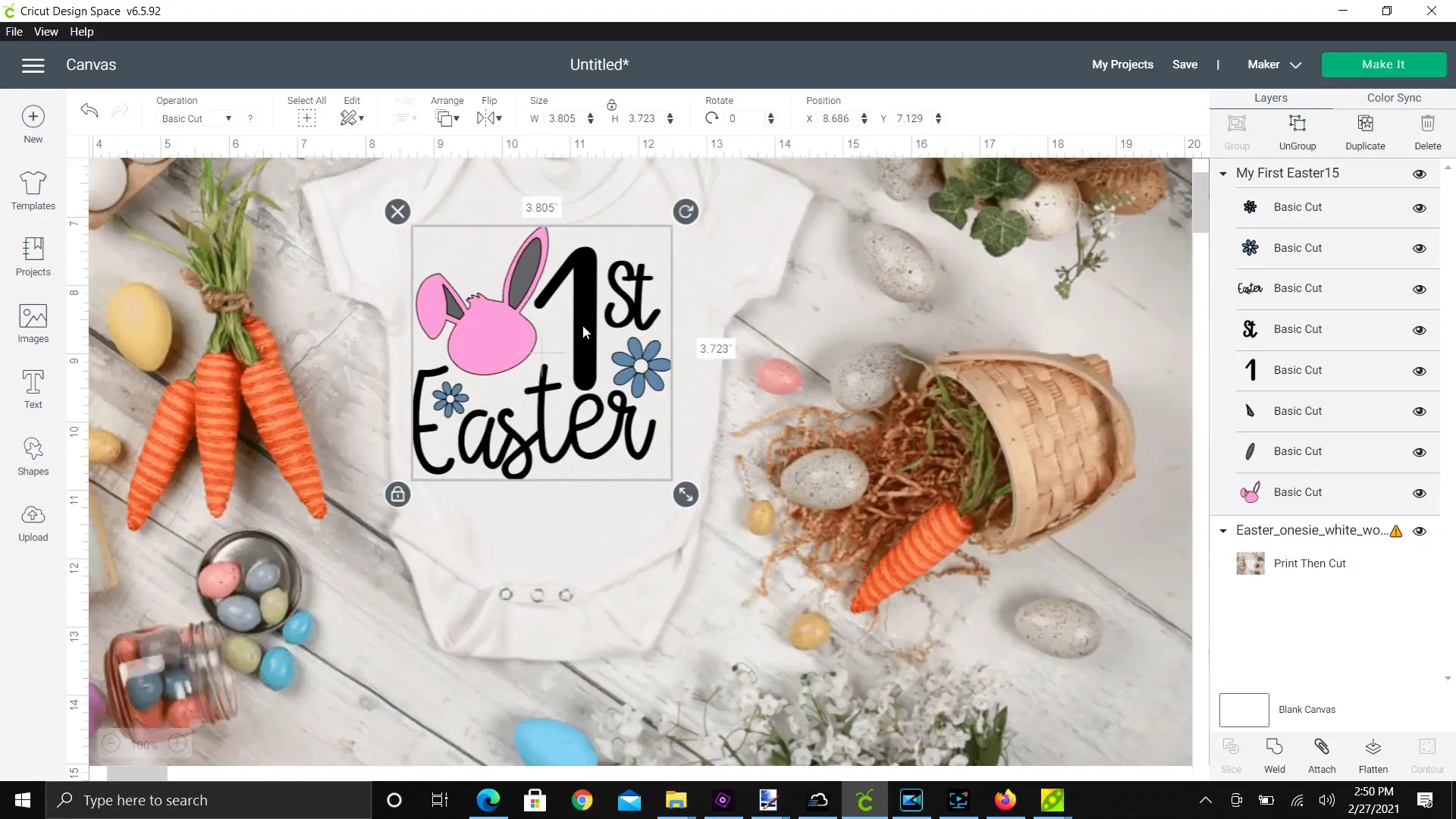
With both your mockup and design on the canvas, drag your design over the area you want it to appear—like the front of a onesie. Resize it to fit perfectly.
You can zoom in to get a closer look and even change colors if you want. For example, if your design has an ear or detail you want to blend into the onesie color, you can change it to white to make it disappear seamlessly.
Step 6: Save Your Mockup Image Using the Snipping Tool
Once you have your design positioned just right, you’ll want to save the image so you can use it for listings or social media posts.
Here’s a quick and easy way to do that on a Windows computer:
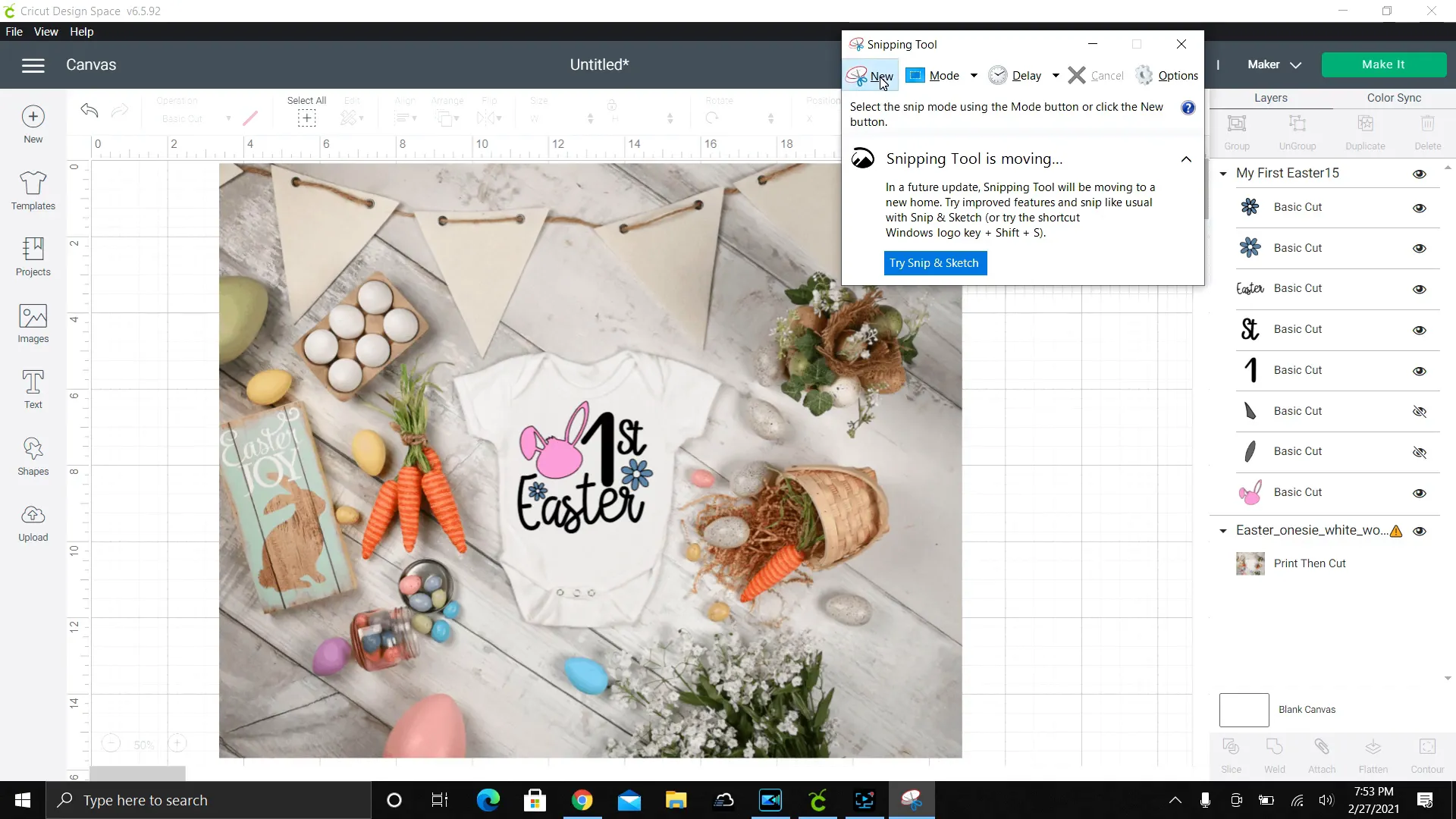
- Click the Start menu and type “Snip.”
- Open the Snipping Tool app.
- Click “New” and drag your cursor around the area you want to capture.
- Click File > Save As, then name your file and save it to your computer.
Now you have a professional-looking photo of your Cricut project without having to make the product physically!
Step 7: Why I Love Creative Fabrica for My Cricut Business
Creative Fabrica has been a lifesaver for me and my Cricut business. Here’s why I recommend it:
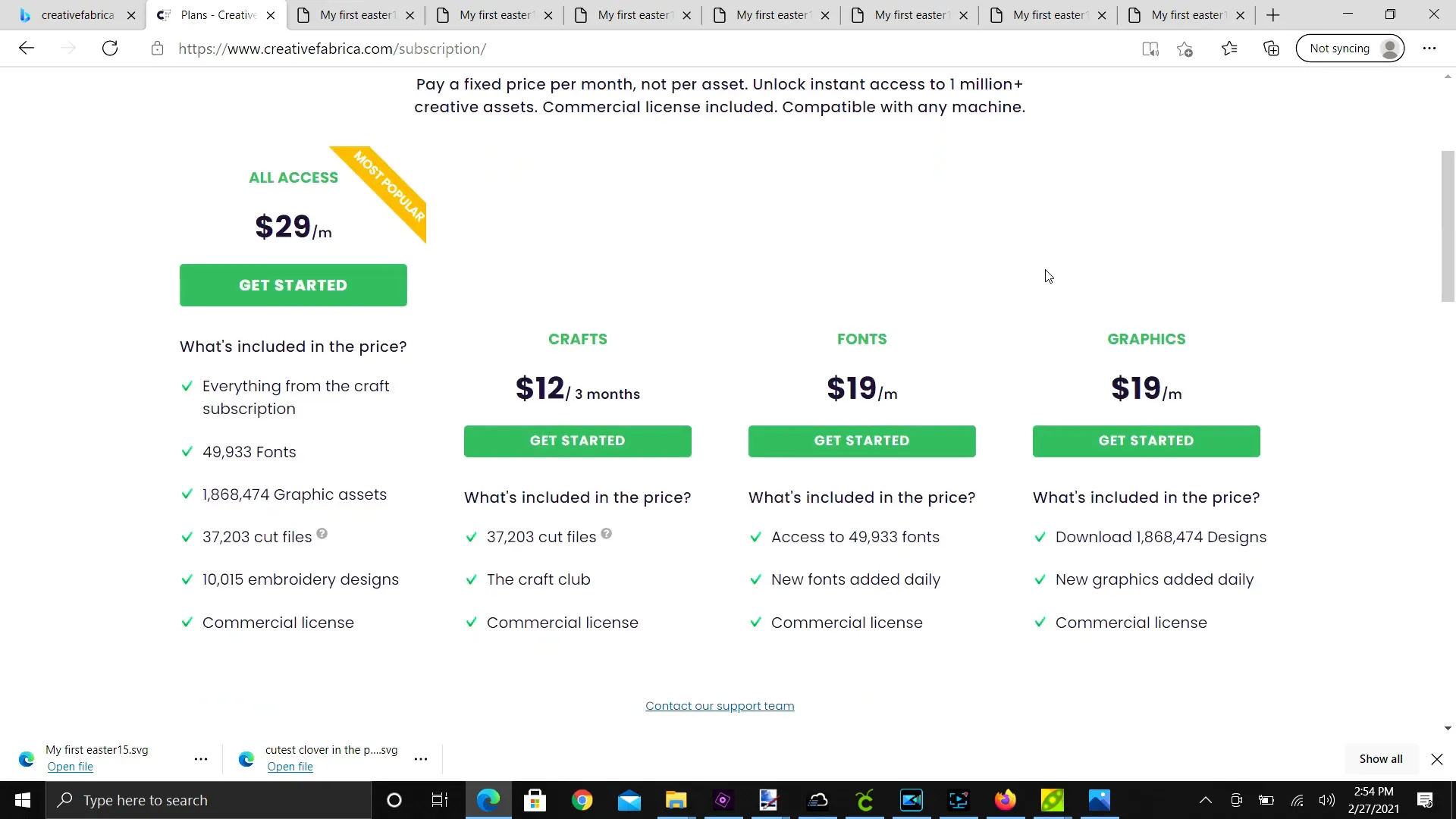
- All Access Plan: For $29 a month, you get unlimited access to fonts, graphics, cut files, embroidery designs, and product mockups—all with commercial licenses.
- Commercial License: If you plan to sell your Cricut creations, you need a commercial license for any design you didn’t create yourself. Creative Fabrica makes this easy by including the license with every download.
- One-Stop Shop: No more hopping between Etsy, font sites, or various graphic stores. Creative Fabrica has everything in one place, so you don’t have to worry about accidentally using a personal-use-only font or design.
- Other Subscription Options: If you don’t want the full all access plan, they offer a craft subscription ($12 for 3 months) with over 37,000 cut files and commercial licenses, plus a font subscription ($19 per month) with nearly 50,000 fonts.
- Endless Inspiration: Not sure what to make next? Just search for a holiday or theme in their search bar to find tons of project ideas and designs.
Step 8: Try Different Mockups for Variety
One of the best things about Creative Fabrica’s product mockups is the variety. You’re not stuck using the same background or style for every product.
For example, if you don’t like the Easter background on your onesie mockup, you can easily swap it out for a different one. Just download another mockup from the product mockups section and upload it into Design Space the same way.
In Design Space, make sure to send the new mockup image to the back so your design sits on top perfectly. This flexibility gives your website or online shop a fresh, professional look that keeps customers engaged.
Step 9: Use Your Mockup Photos to Boost Sales
Now that you have beautiful, professional photos of your Cricut products, it’s time to use them to boost your sales. Upload these images to your Etsy shop, Facebook Marketplace, Instagram, or your own website.
Great product photos are one of the most important factors in attracting buyers online. They make your items look high-quality and desirable, helping you stand out from the competition.
Plus, since you didn’t have to spend time or money creating the physical product just for photos, you can focus more on marketing and growing your business.
FAQs About Using Product Mockups for Your Cricut Business
Q: Do I need to own a Cricut machine to use these mockups?
A: No! You can use product mockups to showcase your designs even before you cut anything on your Cricut. This is great for testing ideas or marketing your products ahead of time.
Q: Can I sell items using designs from Creative Fabrica?
A: Yes, as long as you have the commercial license, which comes with Creative Fabrica’s subscriptions or individual purchases. This lets you legally sell products made with their designs.
Q: Do I have to use Design Space to create mockups?
A: You don’t have to, but it’s very convenient if you’re already using a Cricut. You can also use other design programs like Canva or Photoshop if you prefer.
Q: Are product mockups free on Creative Fabrica?
A: Some mockups may be free, but most are part of their subscription or available for individual purchase. The all access plan gives you unlimited downloads, which is great if you want lots of designs.
Q: Can I customize the mockup colors or backgrounds?
A: Yes! In Design Space, you can change colors, resize designs, and swap backgrounds by uploading different mockups. This helps you create unique photos for each product.
Final Thoughts
Using product mockups from Creative Fabrica has completely changed how I run my Cricut business. It saves me so much time, money, and frustration, and it helps me create professional photos that really grab customers’ attention.
If you’re just starting out or looking for ways to improve your product photos, I highly recommend giving mockups a try. They’re easy to use, look amazing, and can give your business a big boost.
For more tips, project ideas, and help running your own Cricut business, be sure to check out my website at www.kerricraftsit.com! I’ve got lots of beginner-friendly guides and inspiration to help you succeed!
Happy crafting and good luck with your Cricut creations!