Ready for another project? If you've just unboxed your brand new Cricut machine, you're probably excited to start creating amazing projects. But first, you'll need to master Cricut Design Space – the free software that brings your creative ideas to life. Whether you're just starting out or need a refresher on the basics, this guide will walk you through everything you need to know to become confident with Design Space.
What You'll Learn in This Guide
By the end of this tutorial, you'll know how to:
- Set up and navigate Cricut Design Space like a pro
- Create your first design from scratch
- Upload and use your own images
- Send projects to your Cricut machine for cutting
- Troubleshoot common beginner problems
- Use time-saving tips that experienced crafters swear by
Once you've mastered these basics, you'll be ready to tackle amazing projects like creating vinyl decals or even start thinking about turning your hobby into a business!
What is Cricut Design Space?
Cricut Design Space is the powerful (and free!) design software that controls all Cricut machines, including the Cricut Maker, Cricut Explore series, and Cricut Joy. Think of it as the brain behind your machine – it's where you'll create custom designs, access thousands of images and fonts, and send your projects to your Cricut for cutting, drawing, or scoring.
The best part? Design Space is completely free to download and use. While some premium fonts and images require a Cricut Access subscription, there are plenty of free options to get you started.
Step 1: Setting Up Cricut Design Space for Success
Before you can start designing, you need to get Design Space ready to go. Here's your complete setup checklist:
Download and Install Design Space
Start by visiting design.cricut.com to download the software. Design Space works on Windows, Mac, iOS, and Android devices, so choose the version that matches your device and follow the installation prompts.
Create Your Cricut Account
Once the software is installed, open it and create a free Cricut ID if you don't already have one. You'll need to verify your email address by clicking the link they send you, then complete your profile with basic information to get personalized recommendations.
Connect Your Cricut Machine
Turn on your Cricut machine and make sure it's nearby, then choose your connection method – either Bluetooth for wireless convenience or USB cable for a direct connection. Design Space will walk you through the connection process step by step. Make sure to test the connection to ensure your machine responds properly to commands from the software.
Step 2: Navigating the Design Space Interface
Let me give you a tour of the main areas you'll use every time you design:
The Home Screen
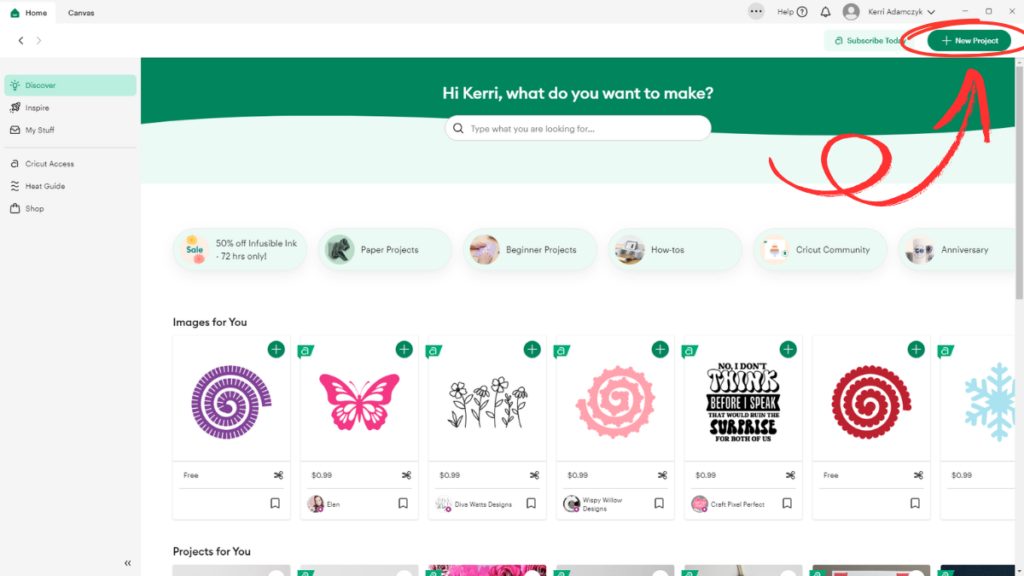
Your starting point in Design Space is where you can start a new project, access recent projects, browse the Project Library for ready-to-make designs, and search for specific images or fonts.
The Canvas
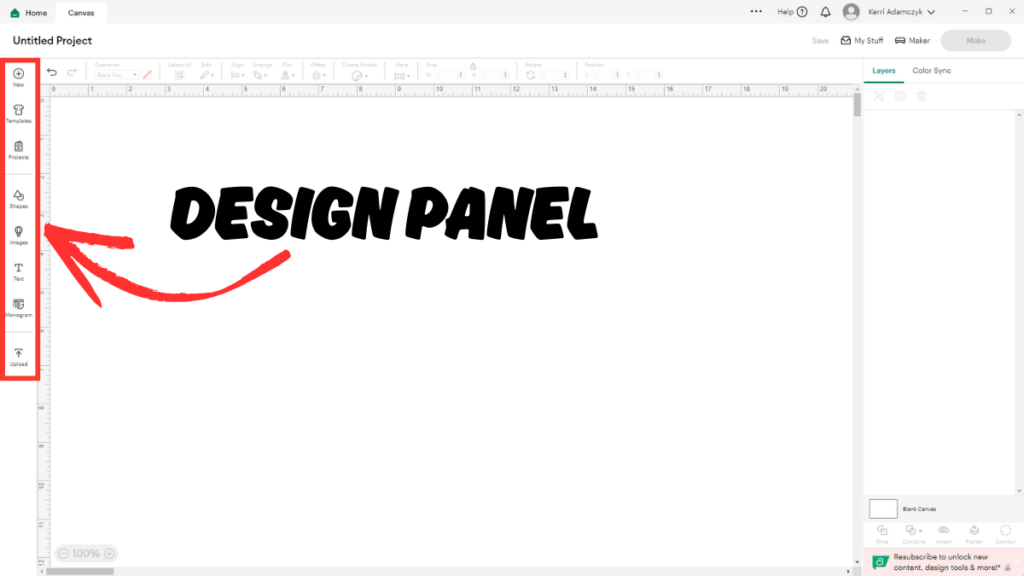
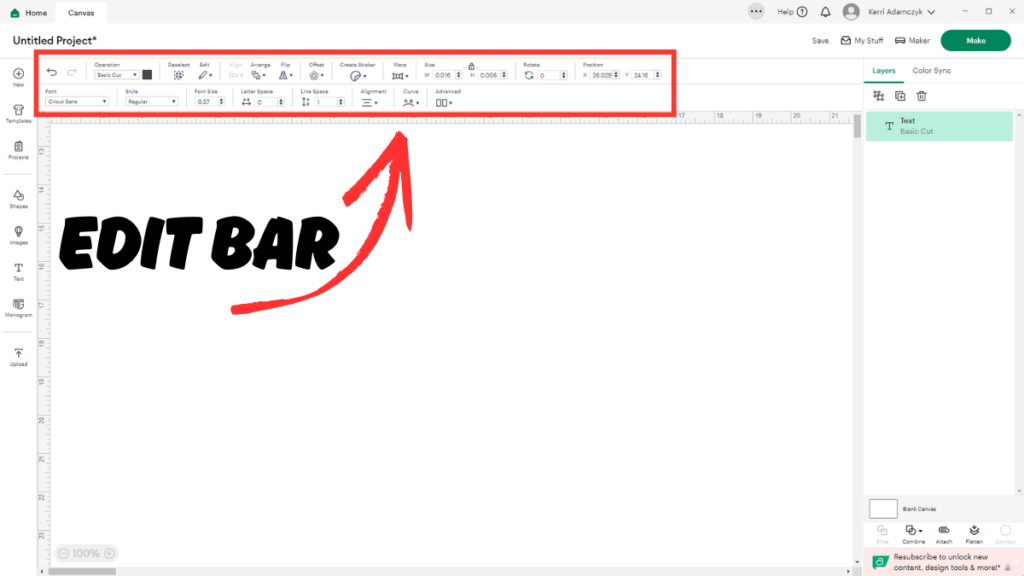
This is your main workspace – think of it as your digital crafting table. The Design Panel on the left side contains tools to add text, images, shapes, and upload your own files. The Canvas Area in the center is your main designing space between the rulers. The Edit Bar at the top provides tools for manipulating your design elements like flip, resize, and duplicate functions. The Layers Panel on the right side shows all elements in your design with options to group, duplicate, or delete items.
Navigation Bar
Located at the very top, this includes notifications for updates and tips, settings for customizing your experience, saved projects for accessing your work, and the “Make It” button to send projects to your machine.
Step 3: Creating Your First Design
Now for the fun part – let's create something! Here are three ways to get started:
Start a New Project: In Cricut Design Space, click the “New Project” button to begin.
Option 1: Start with a Ready-Made Project
Perfect for beginners who want quick success, you can browse the Project Library by clicking “Images” then filtering by “Projects.” Choose a design that matches your skill level, then customize it by changing colors, text, or materials to make it your own. Each project comes with step-by-step guidance to help you succeed.
Option 2: Build from Basic Elements
This approach is great for learning the fundamentals. Start by clicking “Text” in the Design Panel and typing your message, then browse the font library (filter by “Free” if you don't have Cricut Access). Add shapes by clicking “Shapes” for basic elements like circles, squares, and hearts, and browse the image library for decorative elements. Finally, arrange all your elements by dragging, resizing, and rotating to create your perfect design.
Option 3: Start with Ready-Made Images
Perfect for quick projects, simply click “Images” in the Design Panel and search for keywords like “birthday,” “family,” or “quotes.” Filter your results by choosing “Free” or using your Cricut Access subscription, then click on your chosen image and select “Insert Images.” You can then resize and recolor as needed to match your project vision.
Customize Your Design: You can change the color, size, and position of your design elements using the Edit Bar at the top of your Design Space Canvas. If you’re using text, you can change the font, spacing, and alignment.
Step 4: Working with Text Like a Pro
Text is probably what you'll use most, so let's master it:
Adding and Editing Text
Click “Text” in the Design Panel and type your message in the text box that appears. Use the Text Edit Bar to change fonts (thousands are available!), adjust size and spacing, change alignment, and modify letter and line spacing to get exactly the look you want.
Pro Text Tips
- Keep your text readable by avoiding overly decorative or thin fonts for important messages
- Size matters too – make sure text is large enough to cut cleanly, usually at least 0.25" tall.
- When in doubt, try cutting a small sample first to test how it looks.
Want to see text in action? Check out this tutorial on making vinyl decals – it's perfect for practicing your text skills!
Step 5: Uploading Your Own Images
Want to use your own designs or photos? Here's how:
Supported File Types
SVG: Best for designs you want to cut (scalable and crisp)
PNG: Great for images with transparent backgrounds
JPG: Good for photos you want to trace or print
GIF: Works for simple graphics
Upload Process
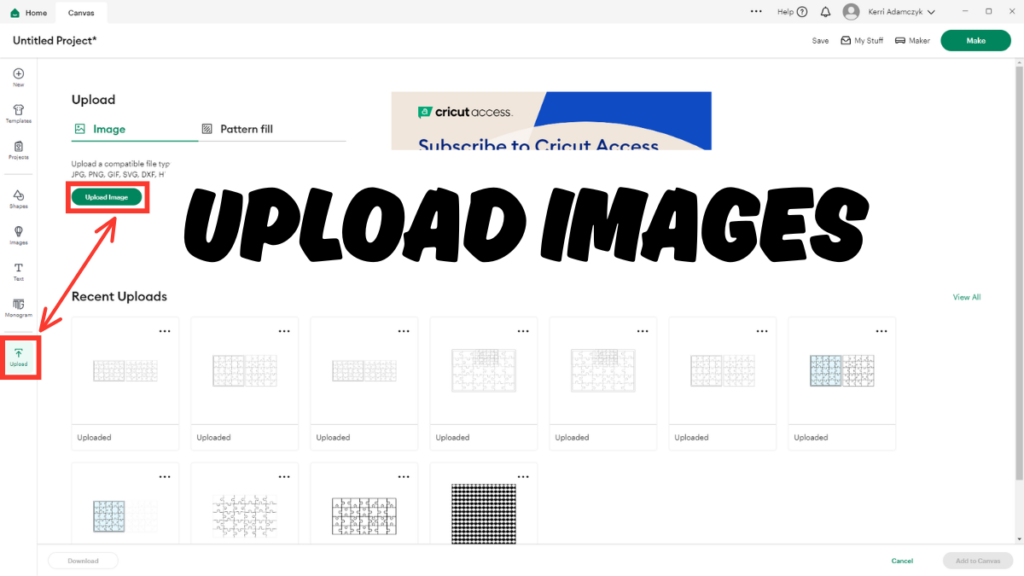
- Click “Upload”: In Cricut Design Space, click the “Upload” button located on the left toolbar.
- Select Your Image: You can upload various file types such as PNG, JPG, SVG, and GIF. Choose the file you want to upload from your computer.
- Clean Up the Image: Cricut Design Space will allow you to remove any background from the image if necessary. For best results, use a high-quality image with a transparent background (like a PNG file).
- Save Your Image: After cleaning up the image, click “Save.” You’ll now be able to use the image in your design just like any other Design Space element.
Step 6: Sending Your Design to Your Cricut
Once your design looks perfect, it's time to cut it:
The “Make It” Process
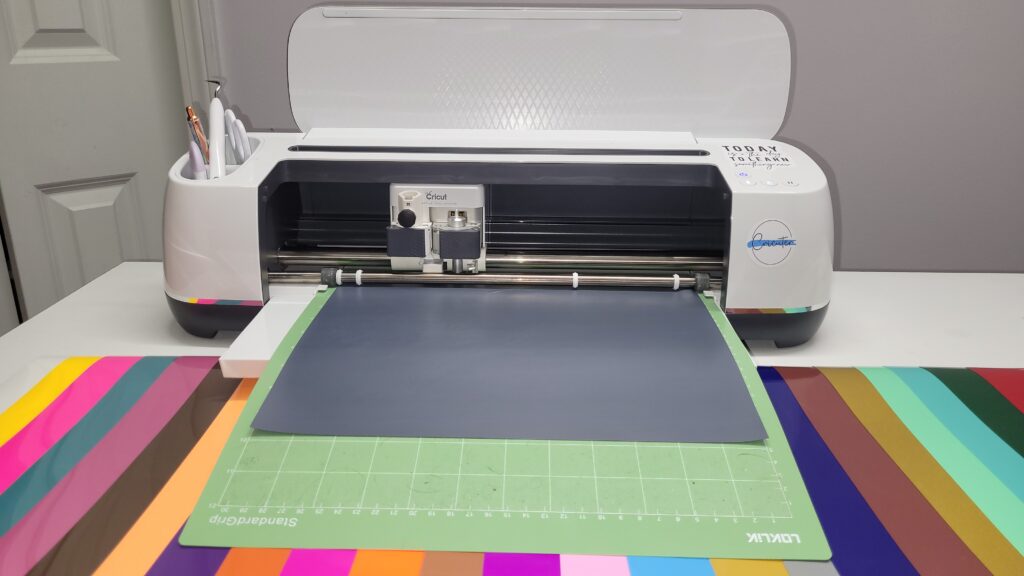
Click “Make It” in the top-right corner, then review the cut screens where Design Space shows you how your project will be cut. If you're using heat transfer vinyl, make sure “Mirror” is turned ON. Choose your material from the comprehensive materials list, then place your material on the appropriate cutting mat. Insert the mat into your Cricut machine and press the flashing button on your machine to start cutting.
Material Selection Tips
For best results, use the pink LightGrip mat for cardstock, the green StandardGrip mat for vinyl, the pink FabricGrip mat for fabric, and the purple StrongGrip mat for thick materials.
Step 7: Finishing Your Project
After cutting comes the finishing touches:
Weeding (Removing Excess Material)
- Use a Weeding Tool: Carefully remove the parts you don't want
- Work Slowly: Take your time, especially with detailed designs
- Save Small Pieces: Keep them for future projects
Applying Your Design
For Vinyl Decals: Use transfer tape to move your design, apply it with a scraper tool, then remove the transfer tape carefully.
For Heat Transfer Vinyl: Use a heat press or iron following the temperature and time guidelines specific to your vinyl type, then remove the carrier sheet after cooling.
Pro Photography Tip: Whether you're making items for yourself or planning to sell them, great photos make all the difference. Check out this guide on using product mockups to create professional photos of your Cricut projects without wasting materials – it's a game-changer for showcasing your work!

Looking for a fun Cricut iron on project idea? Check out this video on using puff vinyl, a specialty type of heat transfer vinyl (HTV) that puffs up when you heat press it. You can also find my custom “Believe there is good in the world” SVG on my Etsy shop here.
Essential Tips for Design Space Success
Save Your Work
Design Space saves automatically, but it's smart to create manual saves for important projects. Use descriptive names so you can easily find your work later, and consider keeping important files backed up elsewhere too for extra security.
Use Keyboard Shortcuts
Speed up your workflow with these handy shortcuts: Ctrl+Z (Cmd+Z on Mac) to undo your last action, Ctrl+C (Cmd+C) to copy selected elements, Ctrl+V (Cmd+V) to paste copied elements, and the Delete key to remove selected elements.
Design Space Etiquette
Start simple by mastering basics before attempting complex projects. Always test new materials with small samples to avoid waste, and keep learning by following Cricut's official tutorials for advanced techniques.
Need help organizing your new crafting passion? Check out these Cricut vinyl projects for beginners to get inspired and see what's possible as you develop your skills.
Troubleshooting Common Beginner Problems
“My Machine Won't Connect”
- Check Bluetooth settings on both devices
- Make sure you're within connection range
- Try restarting both your device and Cricut machine
- Update Design Space if prompted
“My Text is Too Small to Cut”
- Make text at least 0.25″ tall for most materials
- Use bold fonts for thin materials like vinyl
- Test with scrap material first
“My Image Won't Upload”
- Check file size (must be under 25MB)
- Ensure file format is supported (SVG, PNG, JPG, GIF)
- Try converting the file format if needed
“My Design Looks Different After Cutting”
- Check that “Mirror” is ON for iron-on materials
- Verify you selected the correct material setting
- Make sure your mat and material are properly loaded
What's Next for Your Cricut Journey?
Now that you've mastered the basics of Design Space, you're ready to tackle more advanced projects! Here are some next steps to consider:
- Explore Advanced Tools: Learn about Offset, Slice, and Weld functions
- Try Different Materials: Experiment with fabric, leather, or specialty papers
- Join the Community: Connect with other crafters for inspiration and troubleshooting
- Consider Cricut Access: Unlock thousands of premium images and fonts
Want to avoid common pitfalls as you grow your skills? Make sure to read about the 10 biggest mistakes new Cricut owners make – it could save you time, money, and frustration!
Ready to Start Creating?
Cricut Design Space might seem overwhelming at first, but remember – every expert crafter started exactly where you are now. The key is to start with simple projects and gradually work your way up to more complex designs.
Don't be afraid to experiment, make mistakes, and try again. That's how you'll develop the skills and confidence to create amazing projects that reflect your personal style.
Looking for your first project inspiration? Try making:
- Simple vinyl decals for water bottles
- Iron-on designs for personalized t-shirts
- Paper cutouts for greeting cards
- Custom Easter baskets for the upcoming holiday
And here's a pro tip: once you've mastered creating designs in Design Space, learn how to make your Cricut products look irresistible with product mockups. This technique will help you create professional product photos without wasting materials – perfect if you're thinking about selling your creations!
The possibilities are endless when you know how to use Design Space effectively. You've got all the tools you need – now it's time to start creating!
Want more Cricut tutorials and project ideas? Check out my other guides for step-by-step instructions on specific techniques and projects. And if you're thinking about turning your new skills into income, learn how to start a Cricut business the right way. Happy crafting!
Start Creating with Cricut Design Space
Now that you know the basics of Cricut Design Space, you’re ready to start designing and crafting amazing projects with your Cricut machine! Whether you’re making personalized gifts, home décor, or custom apparel, Cricut Design Space makes it easy to bring your ideas to life.
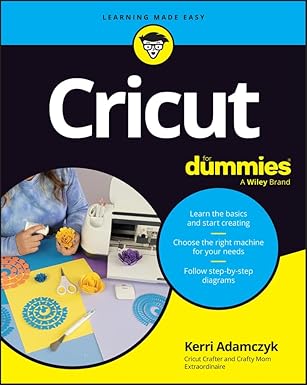
Also, don’t forget to pre-order my upcoming book, Cricut for Dummies, available this June! It’s packed with helpful tips, projects, and everything you need to master your Cricut machine.